Create queue
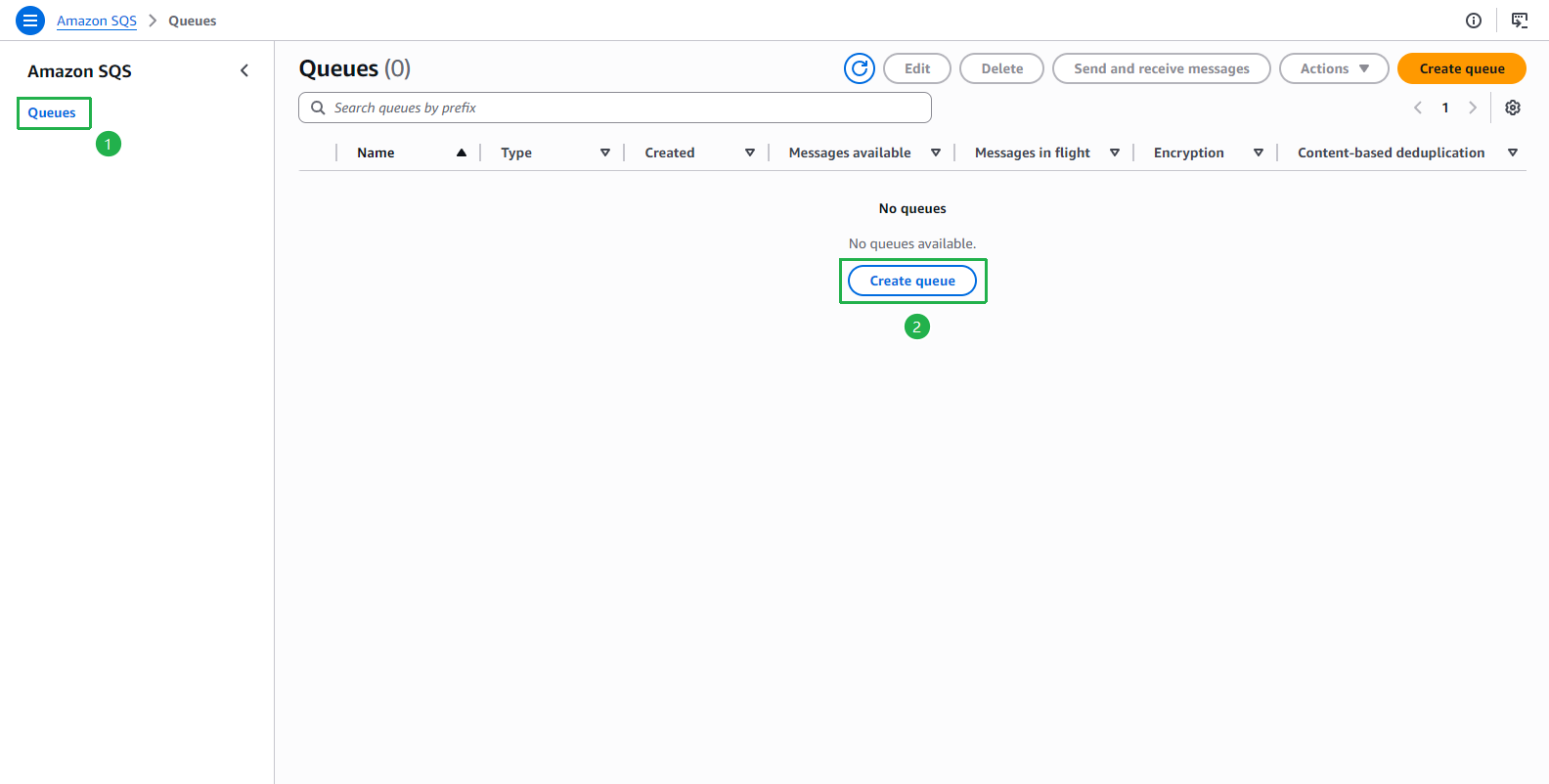
Open Amazon SQS console.
- Click Queues on the left menu.
- Click Create queue.
At Create queue page.
- Choose Standard Type.
- Enter
checkout-queueName.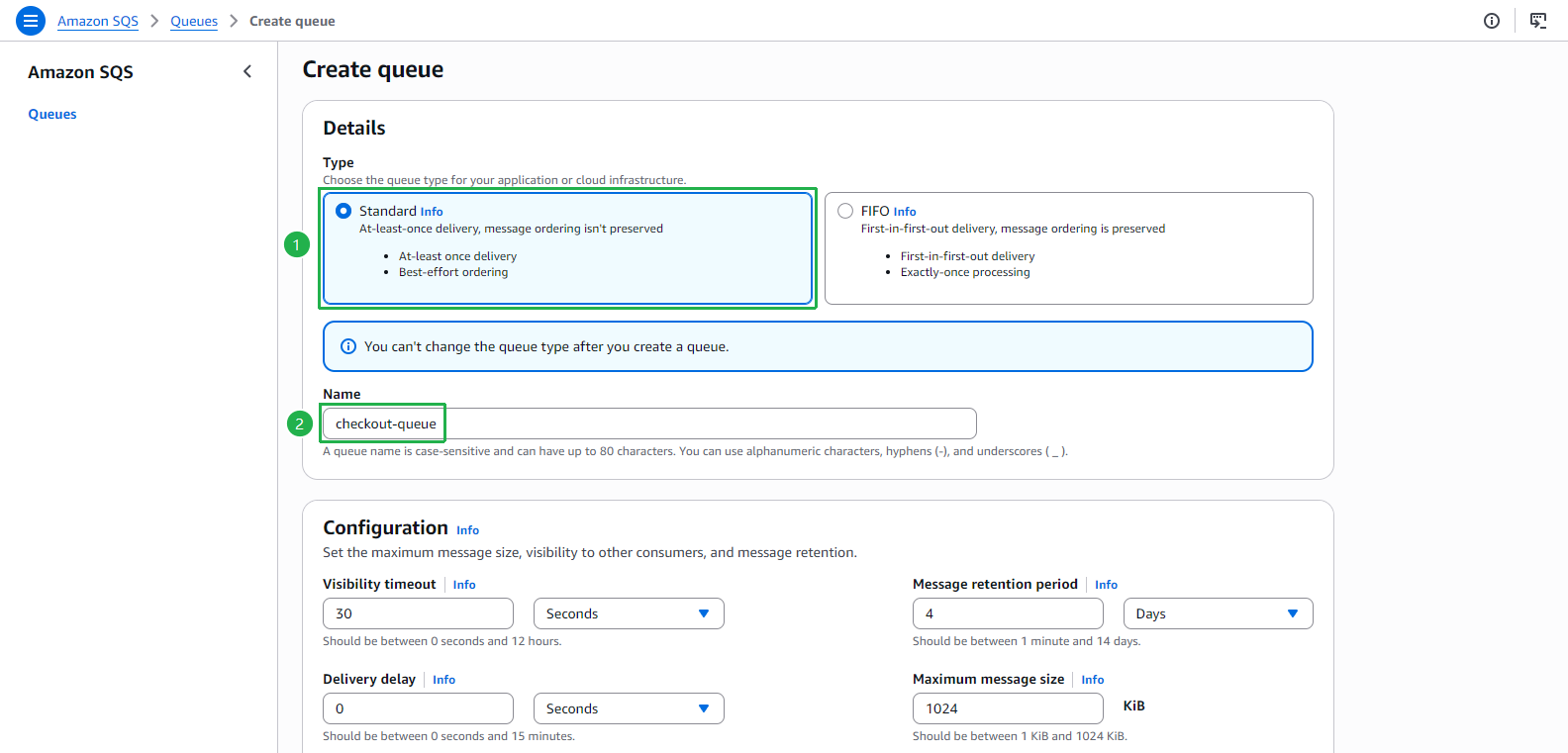
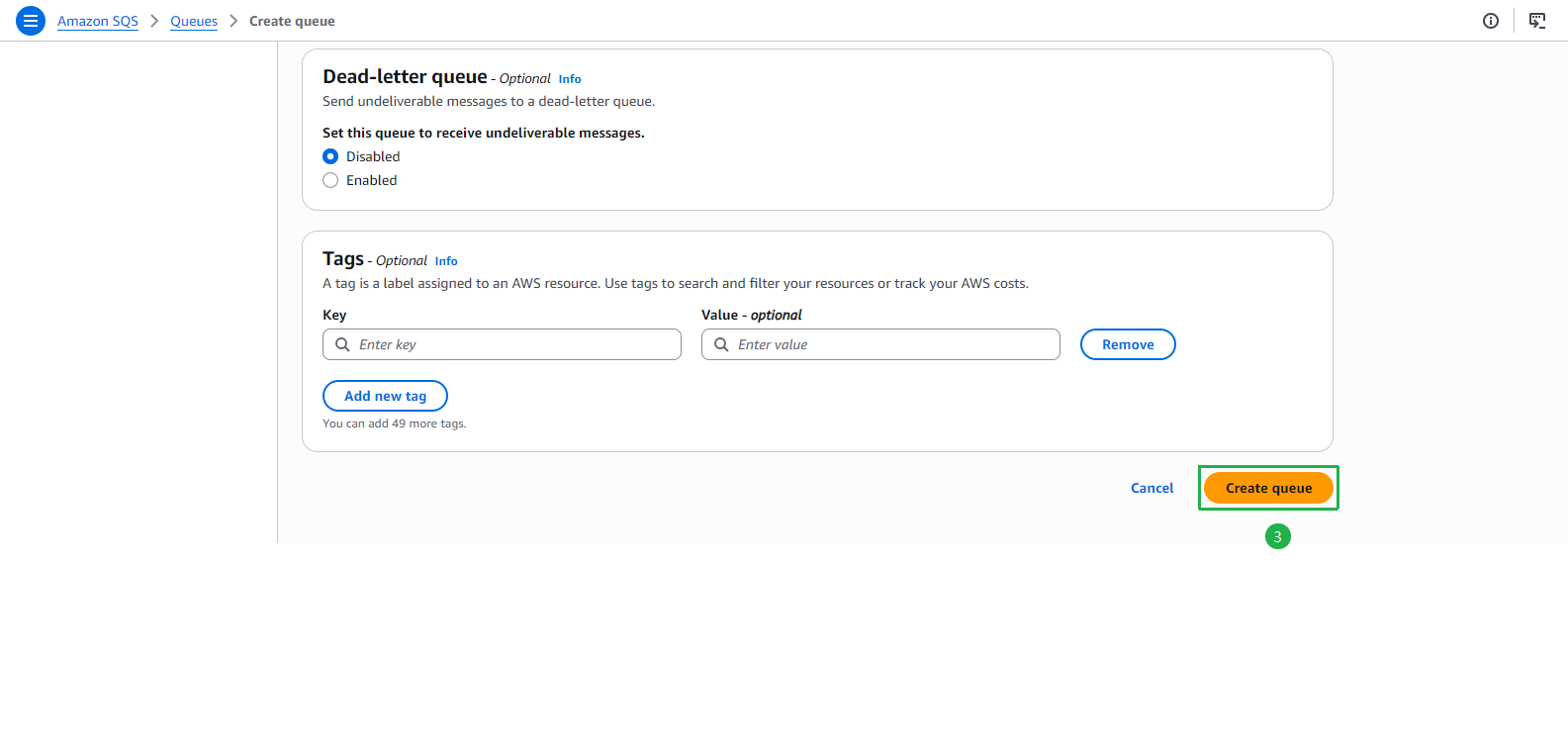
- Leave as default, scroll down and click Create queue button.
The checkout-queue has been created successfully.
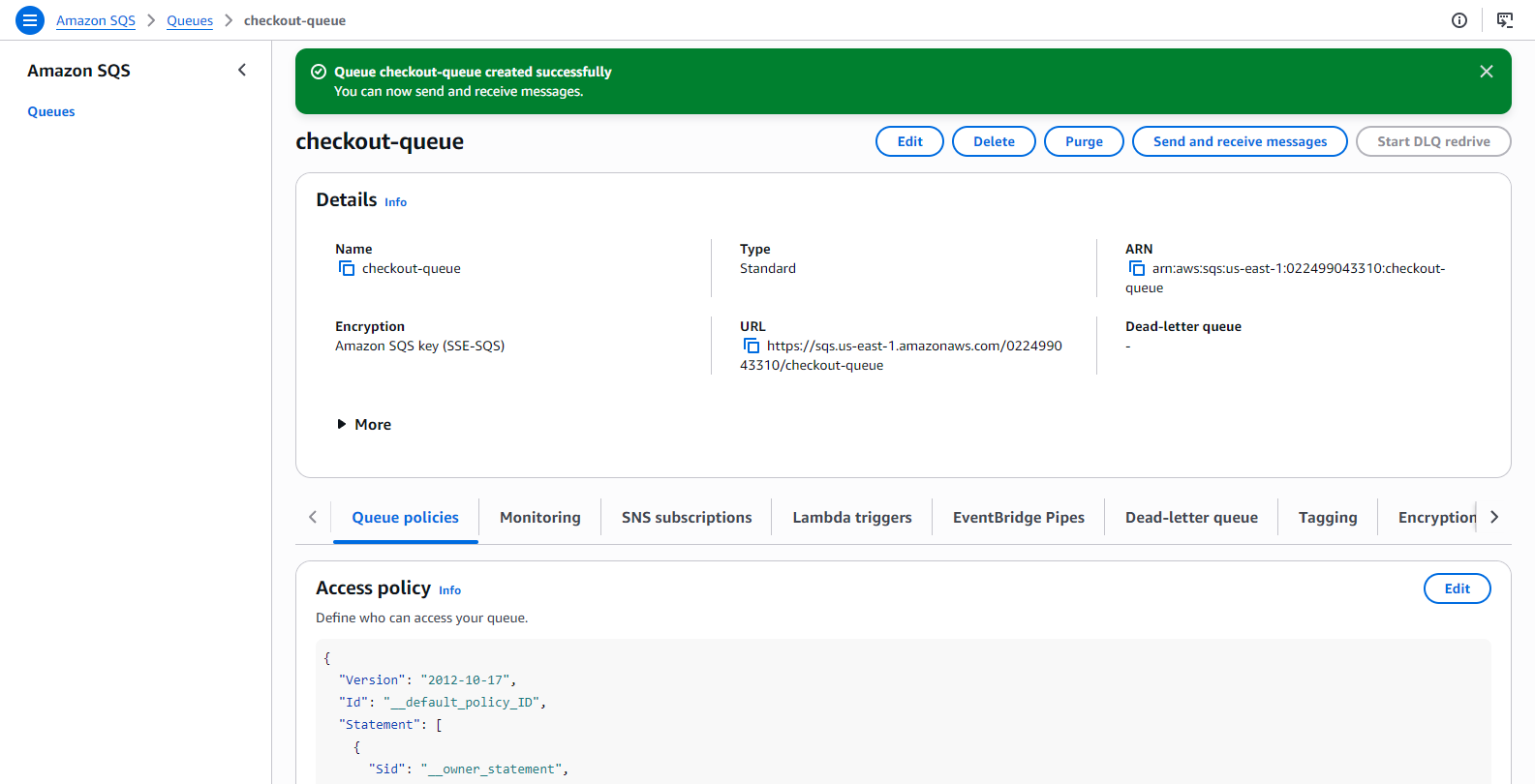
At checkout-queue page.
- Click Send and receive messages button.
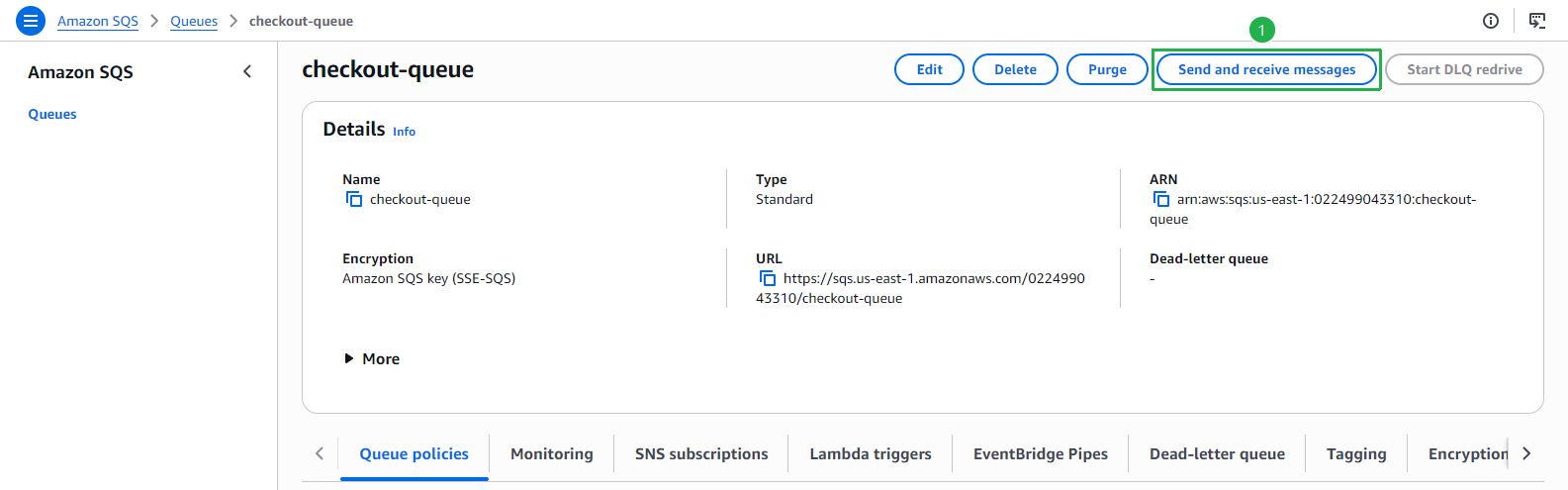
- Click Send and receive messages button.
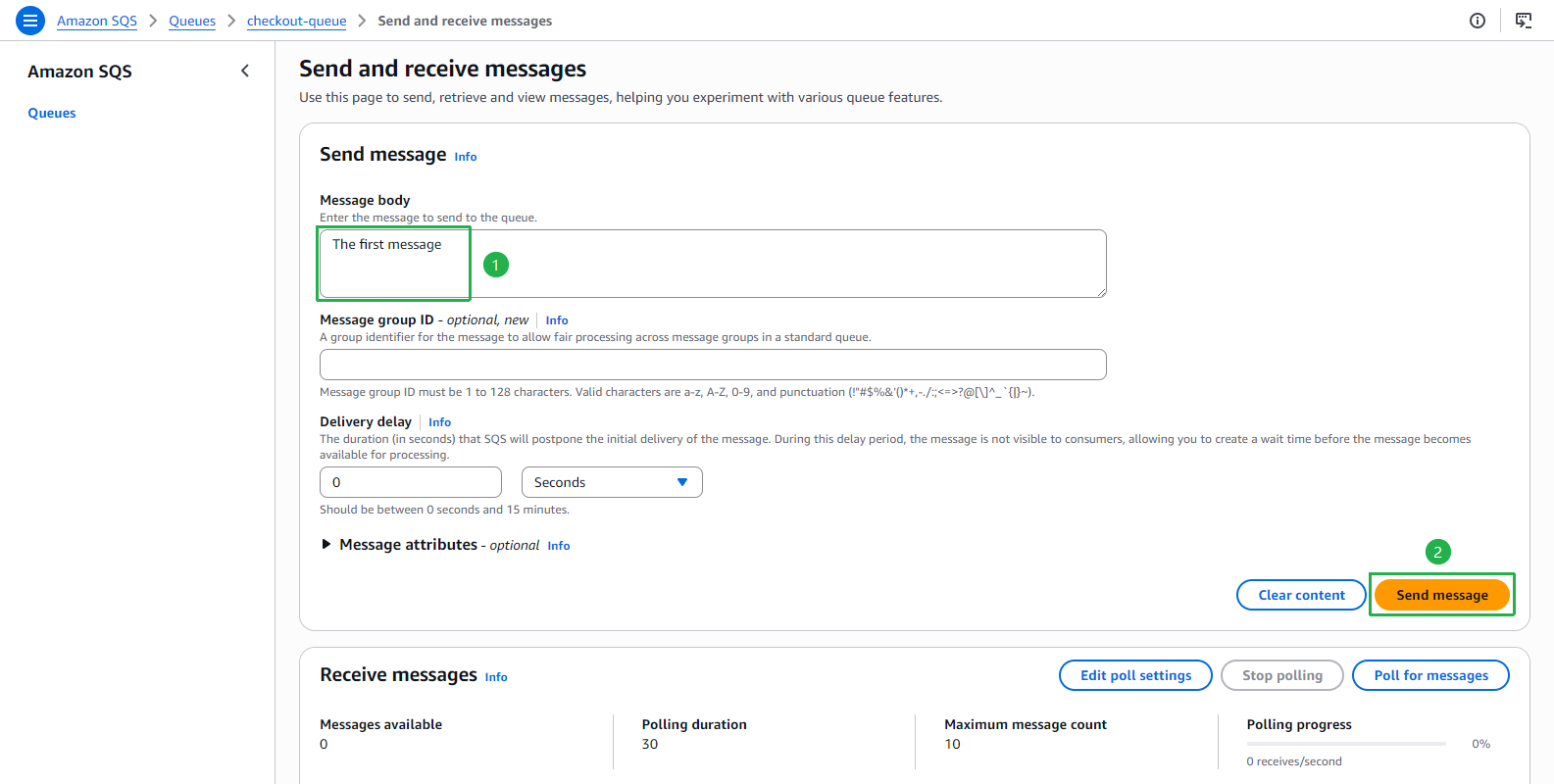
At Send and receive messages page.
- Enter
The first messageat Message body. - Click Send message to send message to queue.
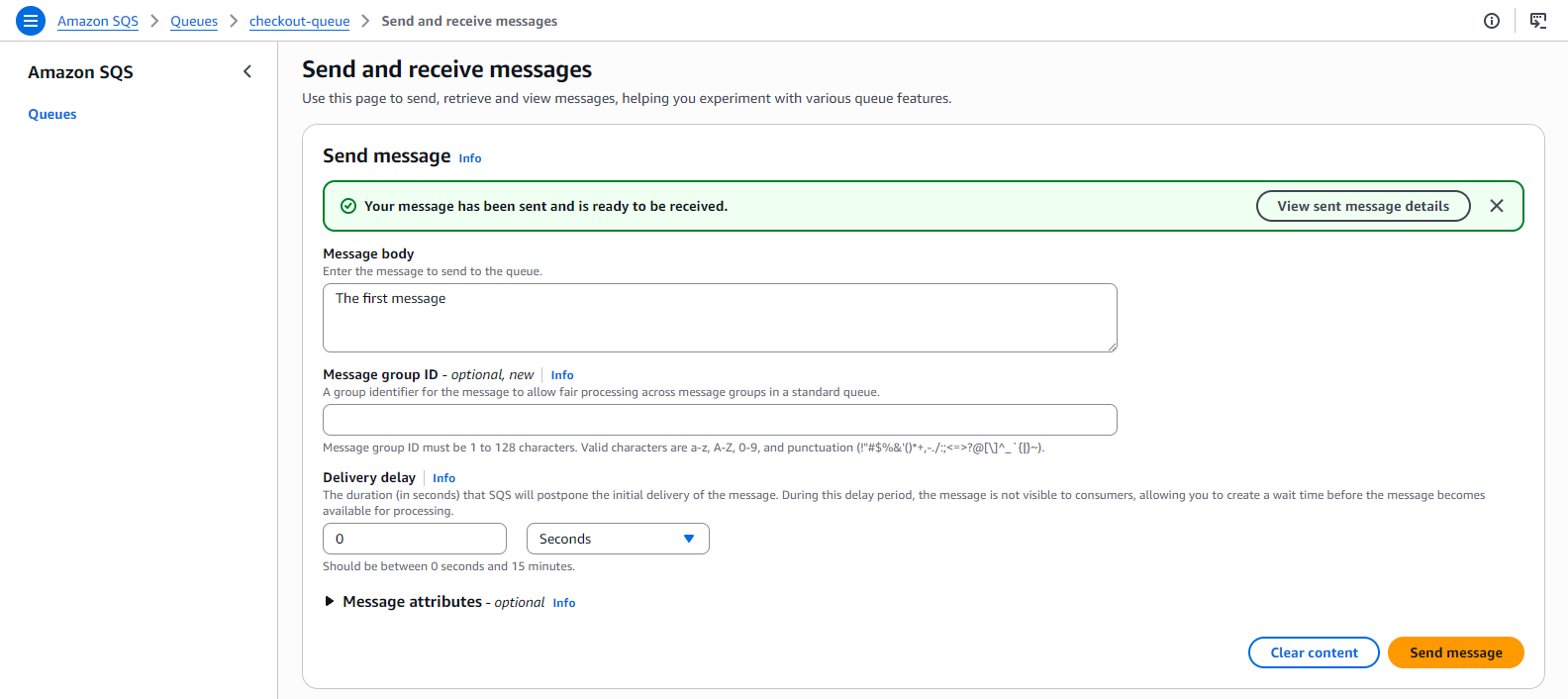
- The message has been sent successfully.
- Enter
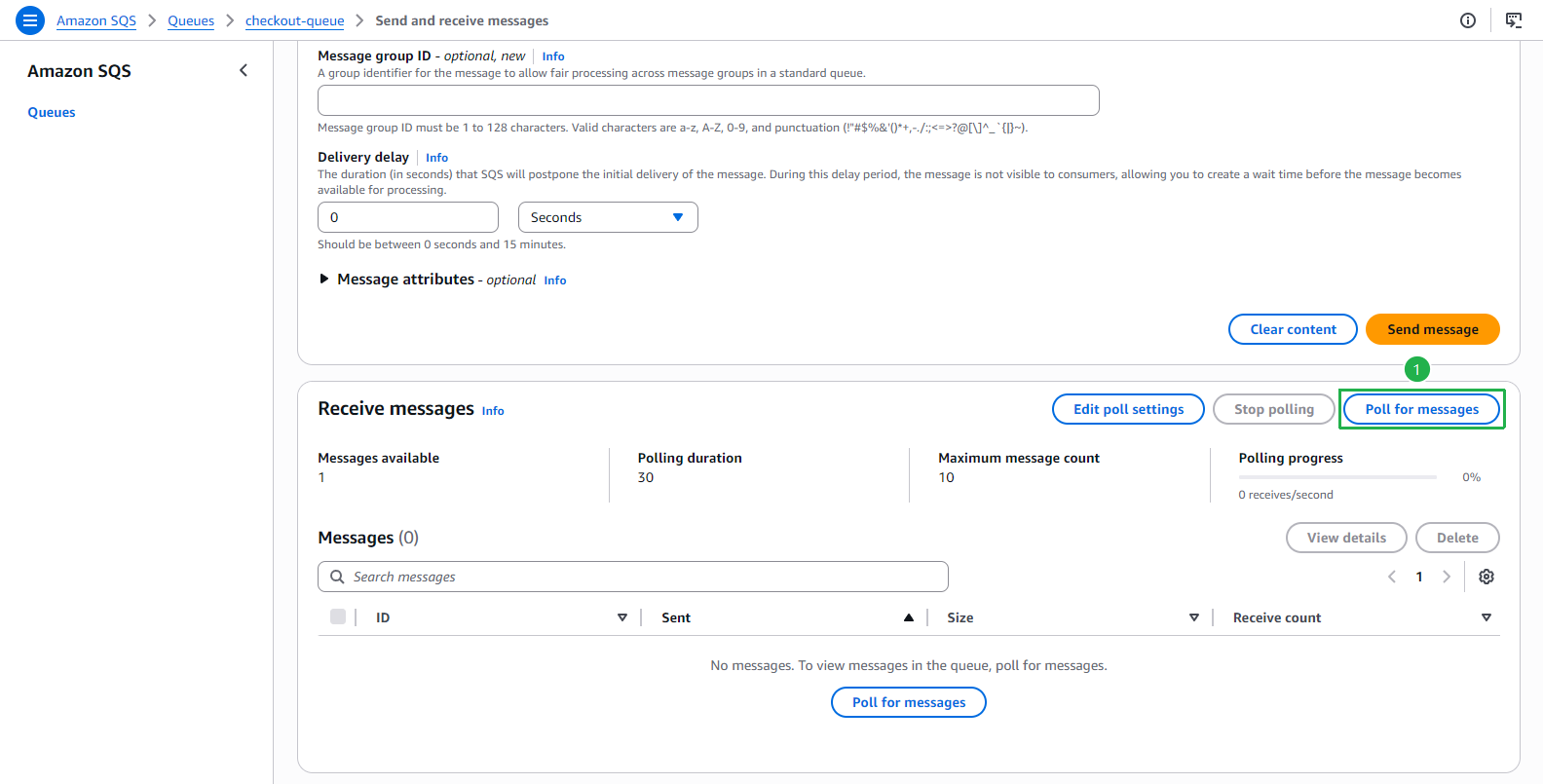
Scroll down to the Receive messages section.
- Click Poll for messages to receive all messages sent to queue.
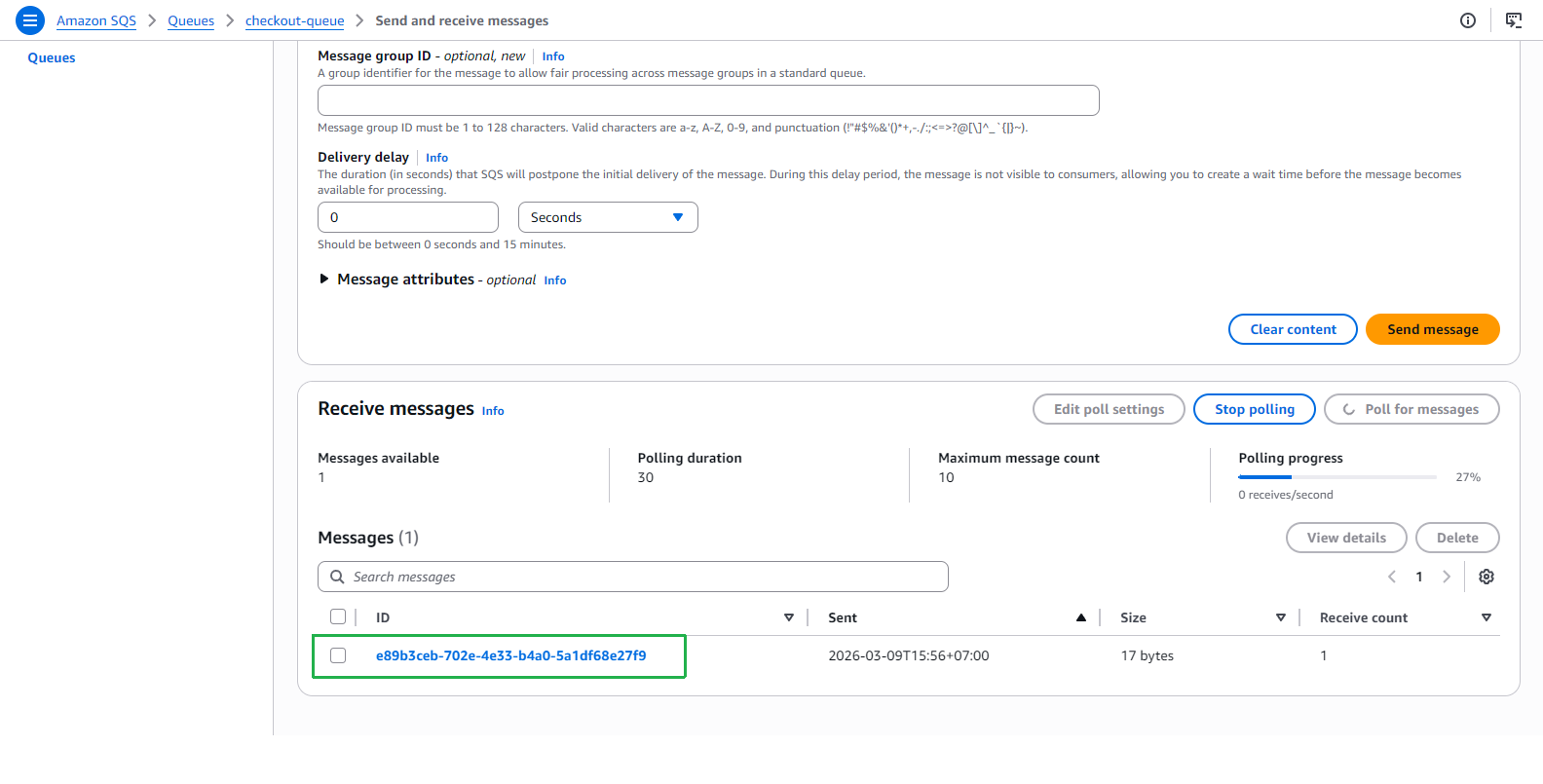
- Click on the message that is just shown.
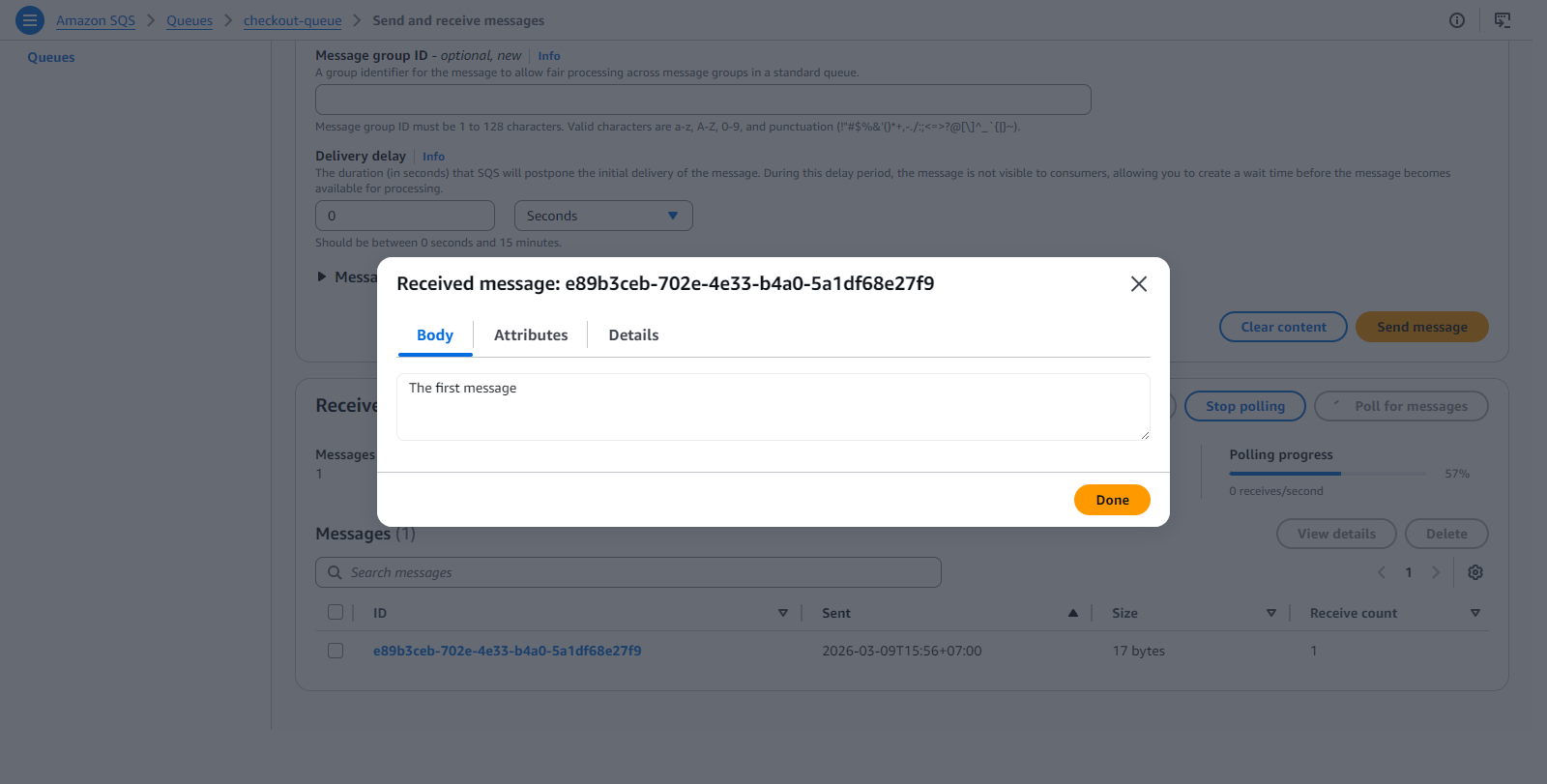
- At the Received message: … popup, check Body message and click Done button.
- Click Poll for messages to receive all messages sent to queue.
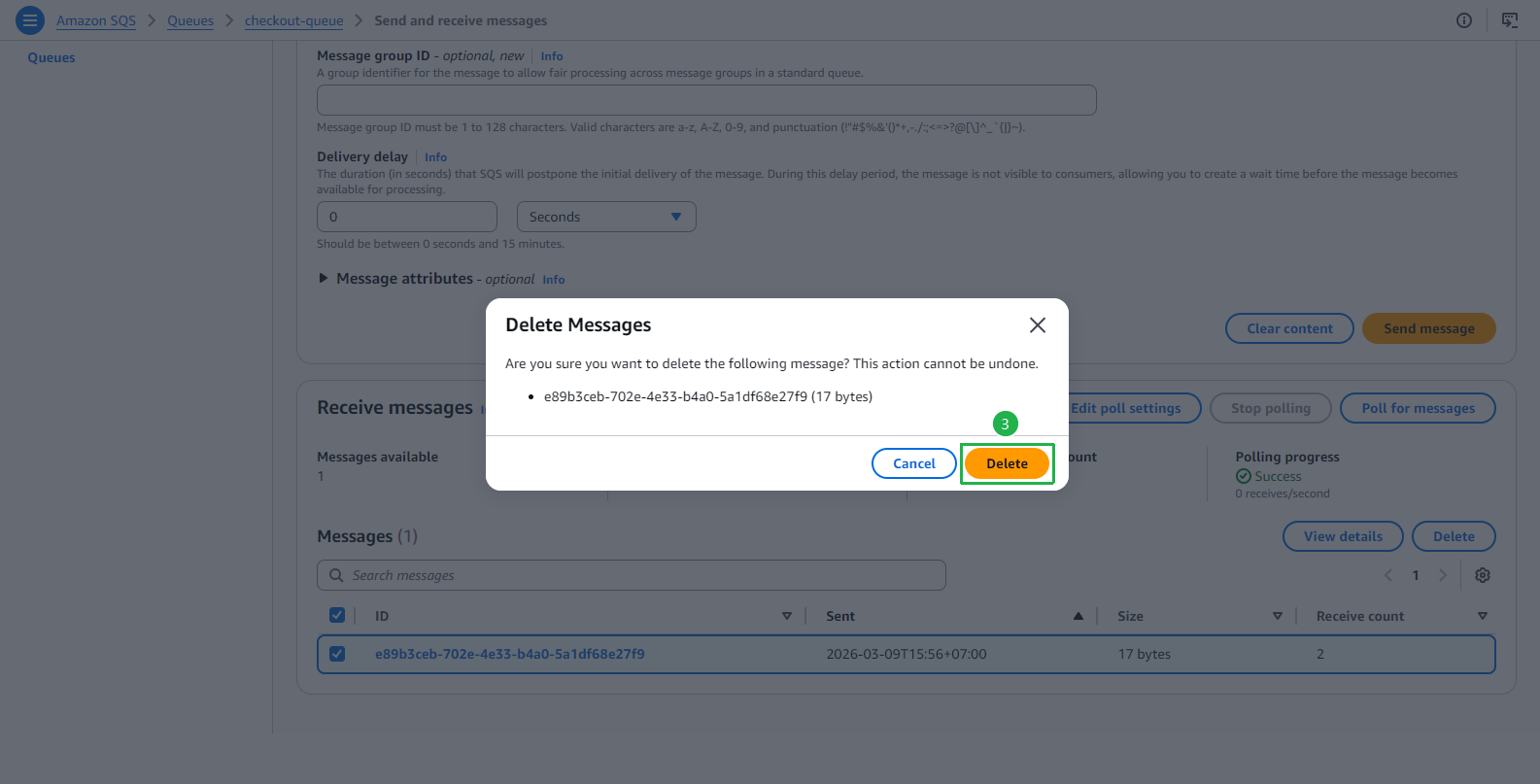
Delete the message.
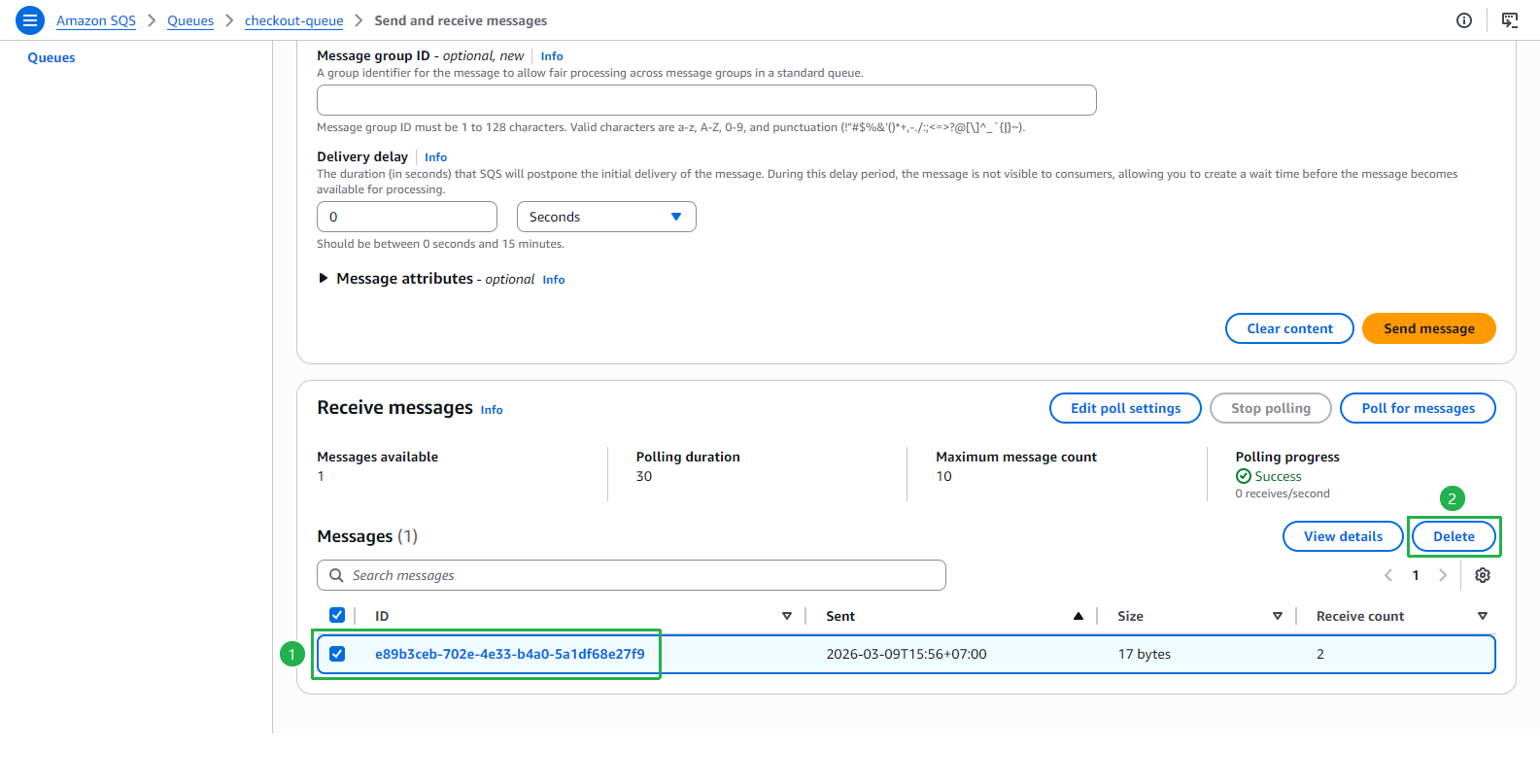
- Click on the checkbox of the message.
- Click Delete button.
- At the Delete Messages popup, click Delete button.
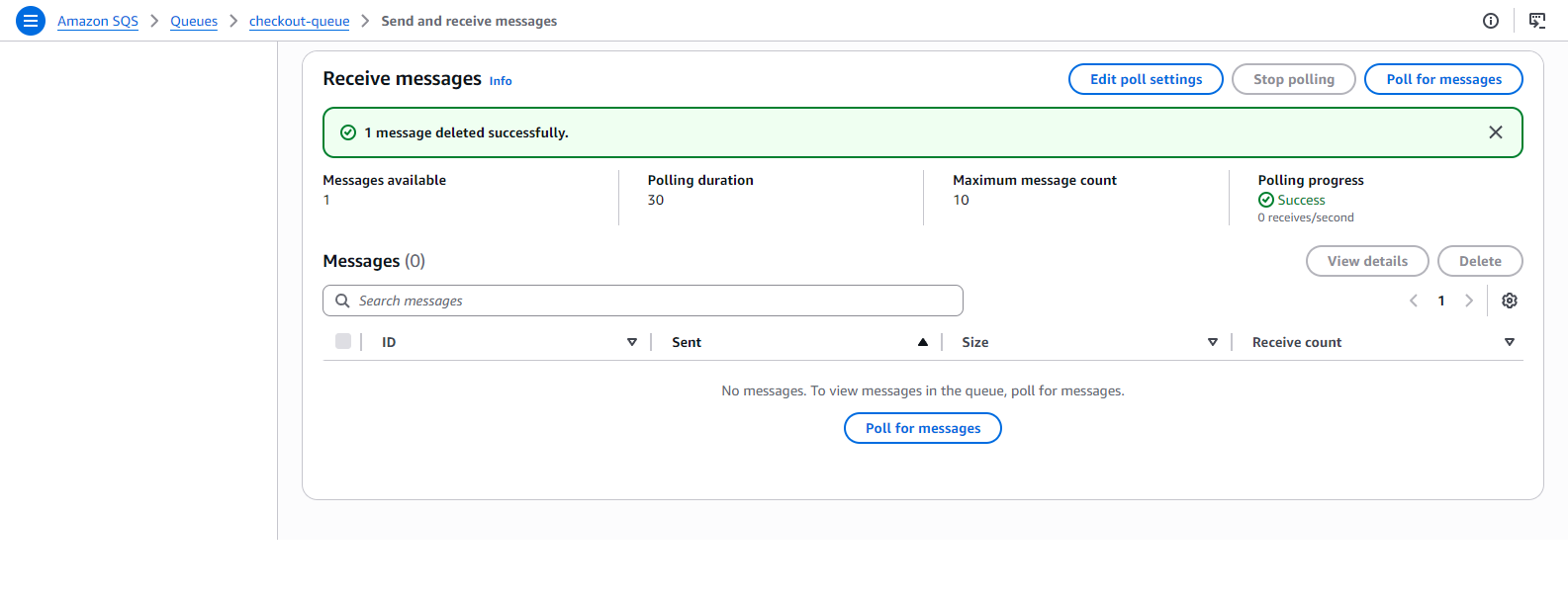
- The message has been deleted successfully.