Create SNS topic
Open Amazon SNS console.
- Click Topics on the left menu.
- Click Create topic button.
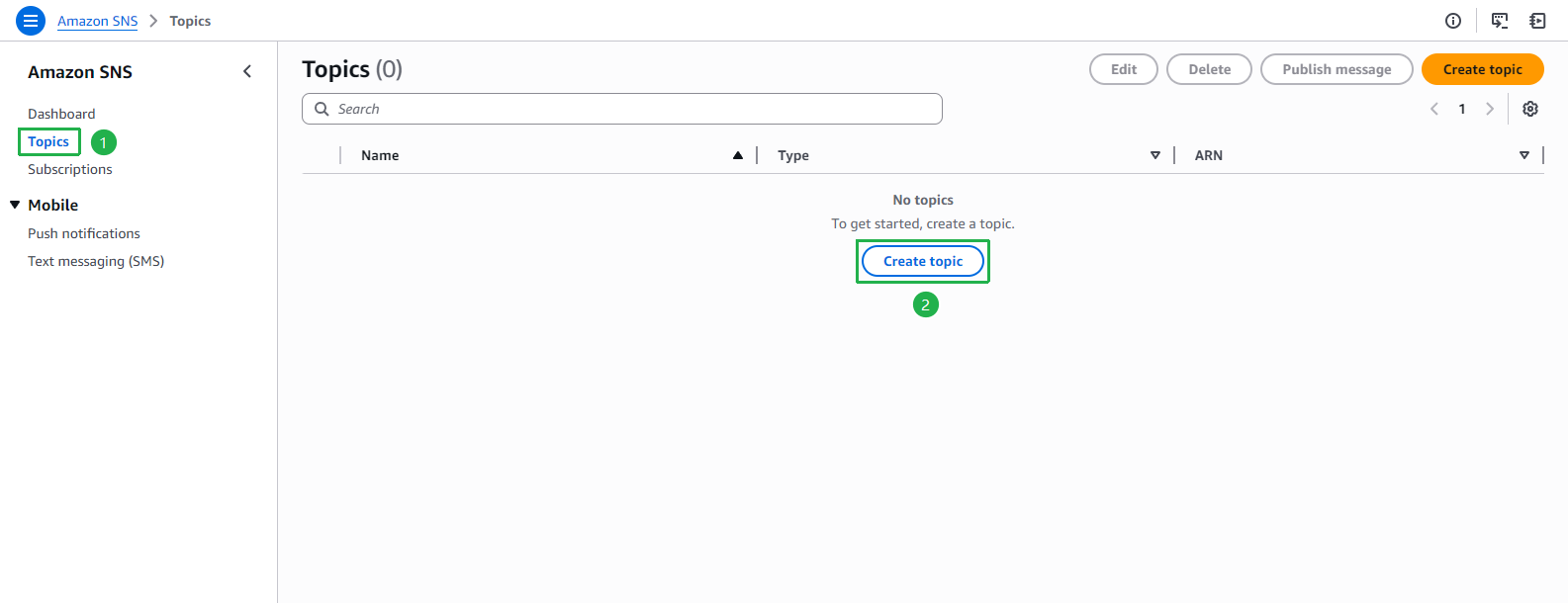
At Create topic page.
- Click Standard at Type.
- Enter
order-noticeat Name.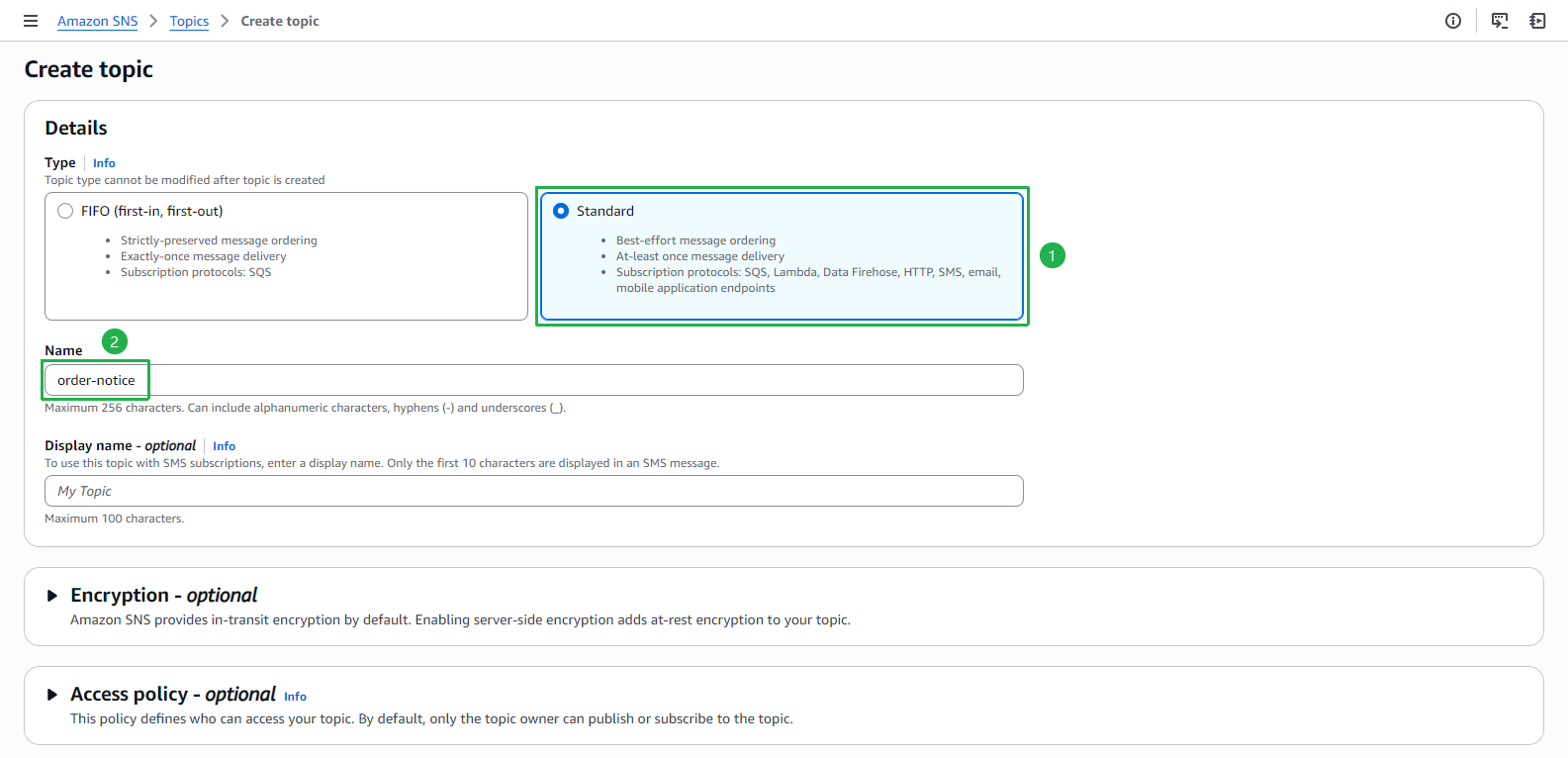
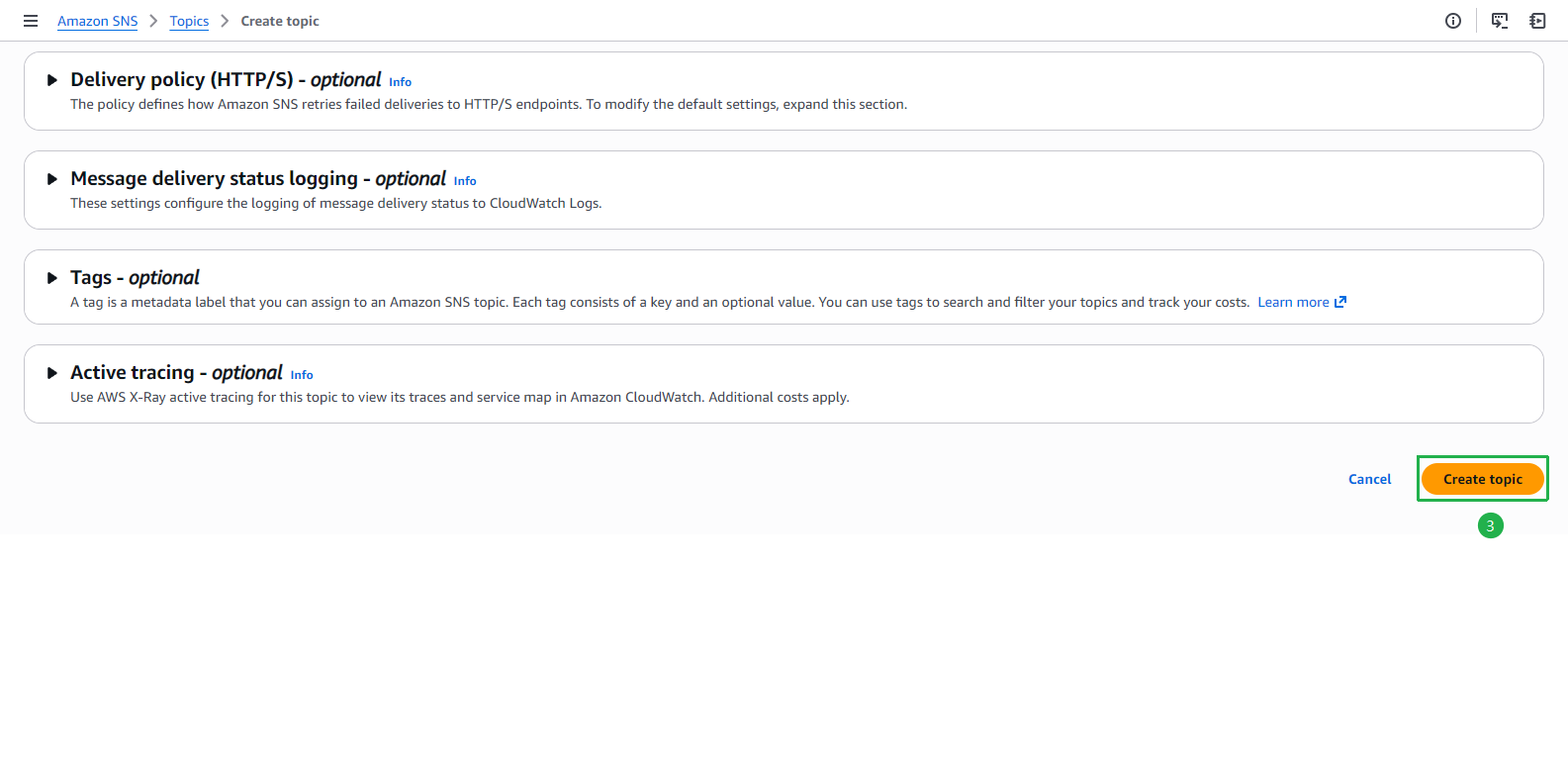
- Leave as default, scroll down and click Create topic button.
The topic order-notice has been created successfully.
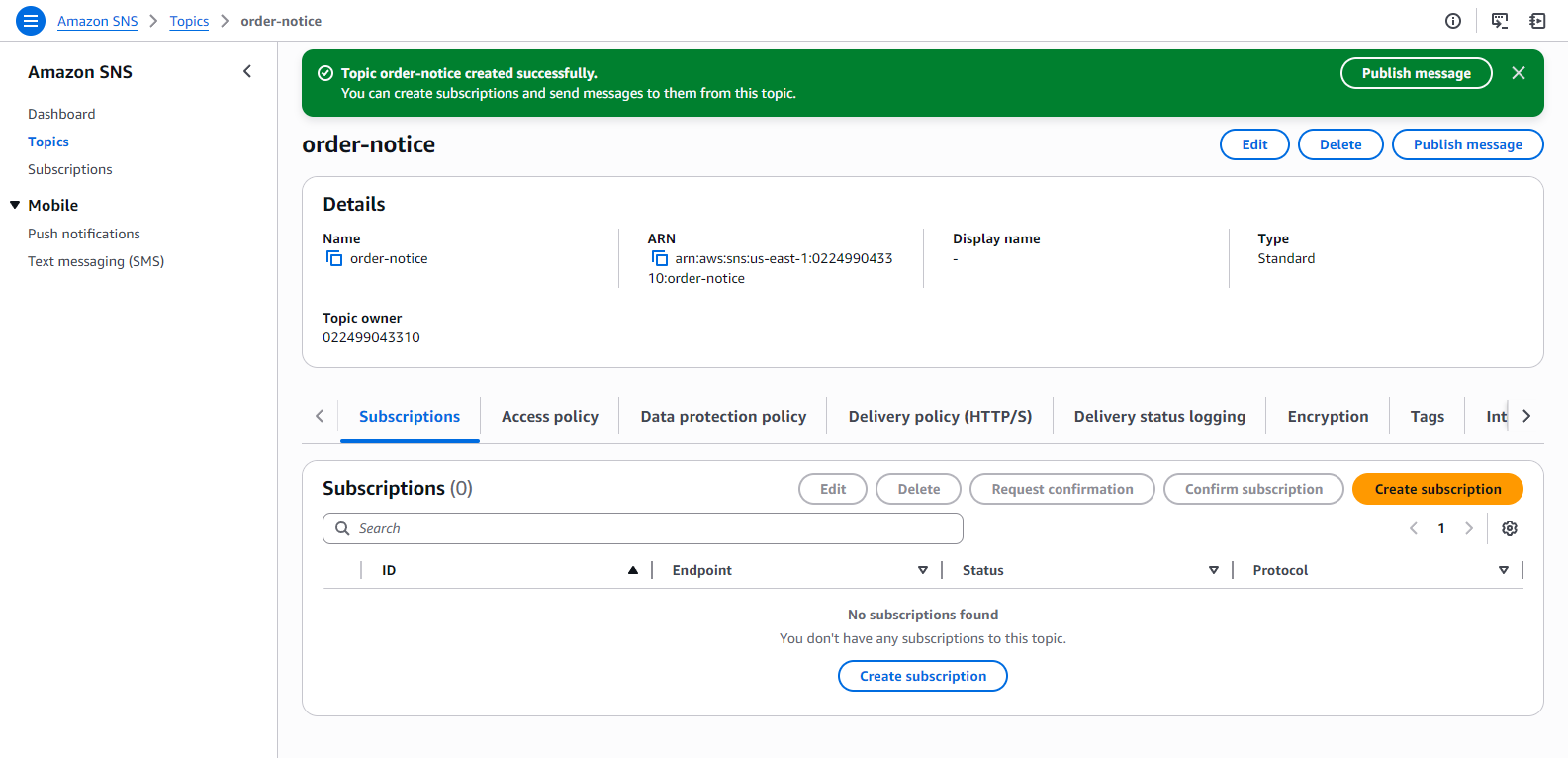
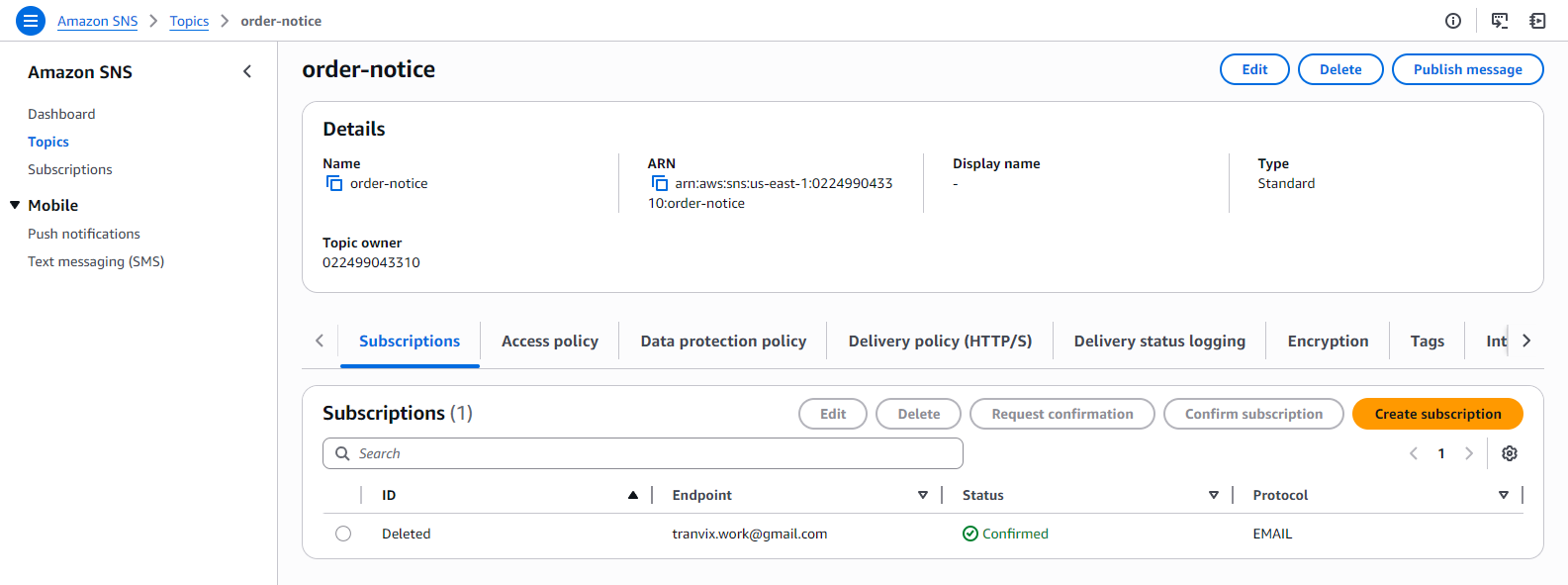
At order-notice page.
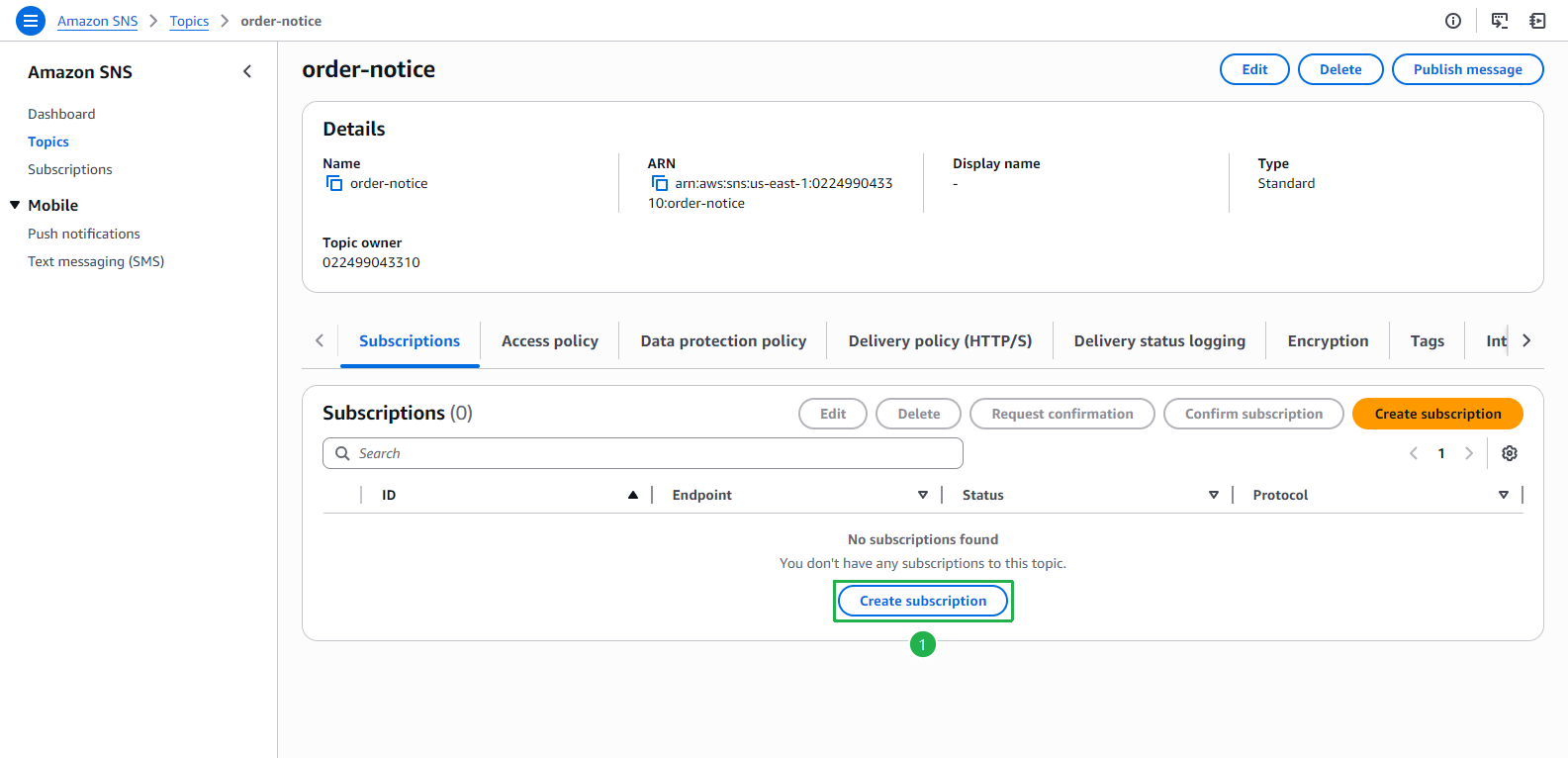
- Click Subscriptions tab.
- Click Create subscription button.
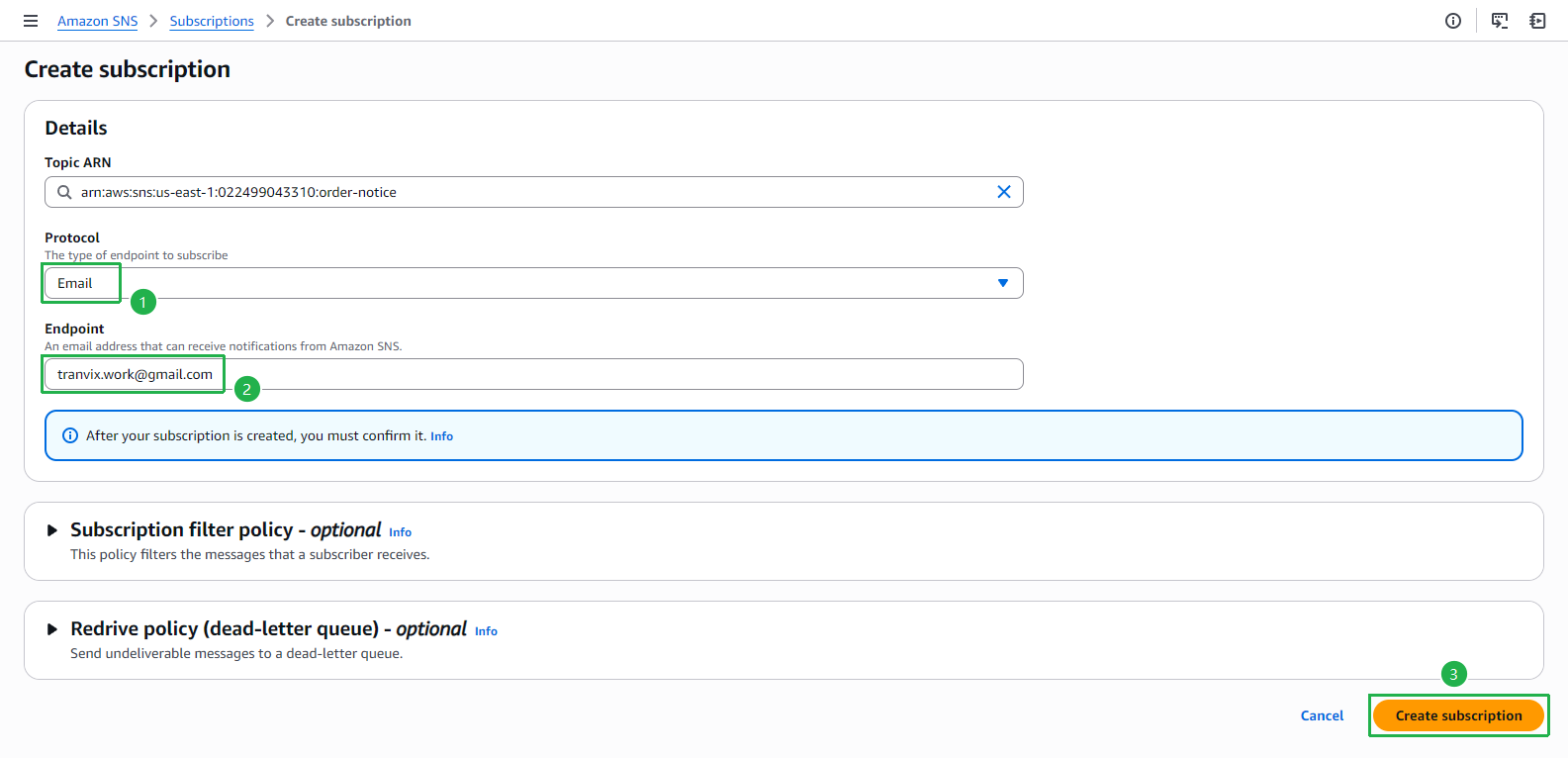
At Create subscription page.
- Choose Email at Protocol.
- Enter your email at Endpoint.
- Click Create subscription.
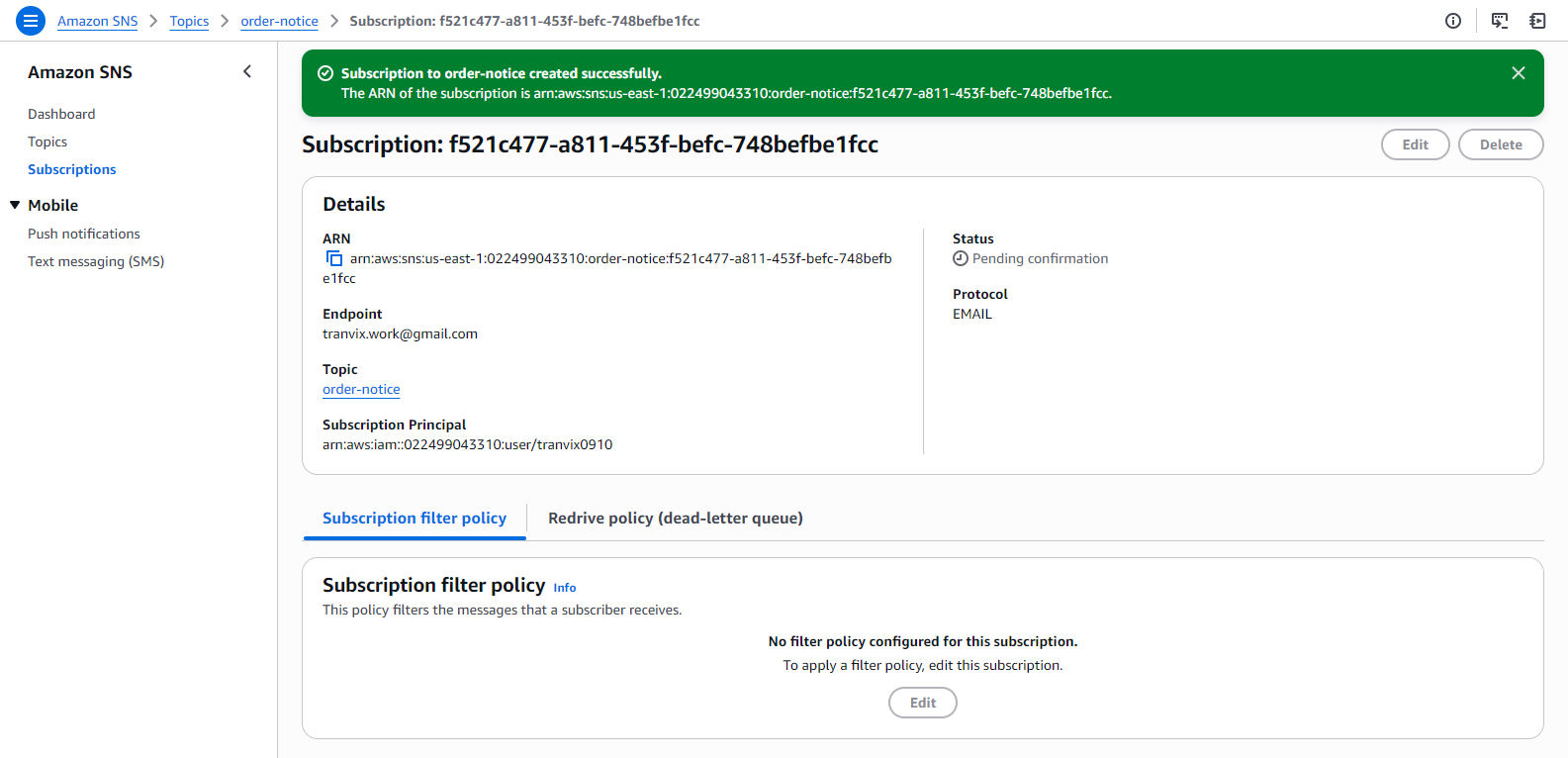
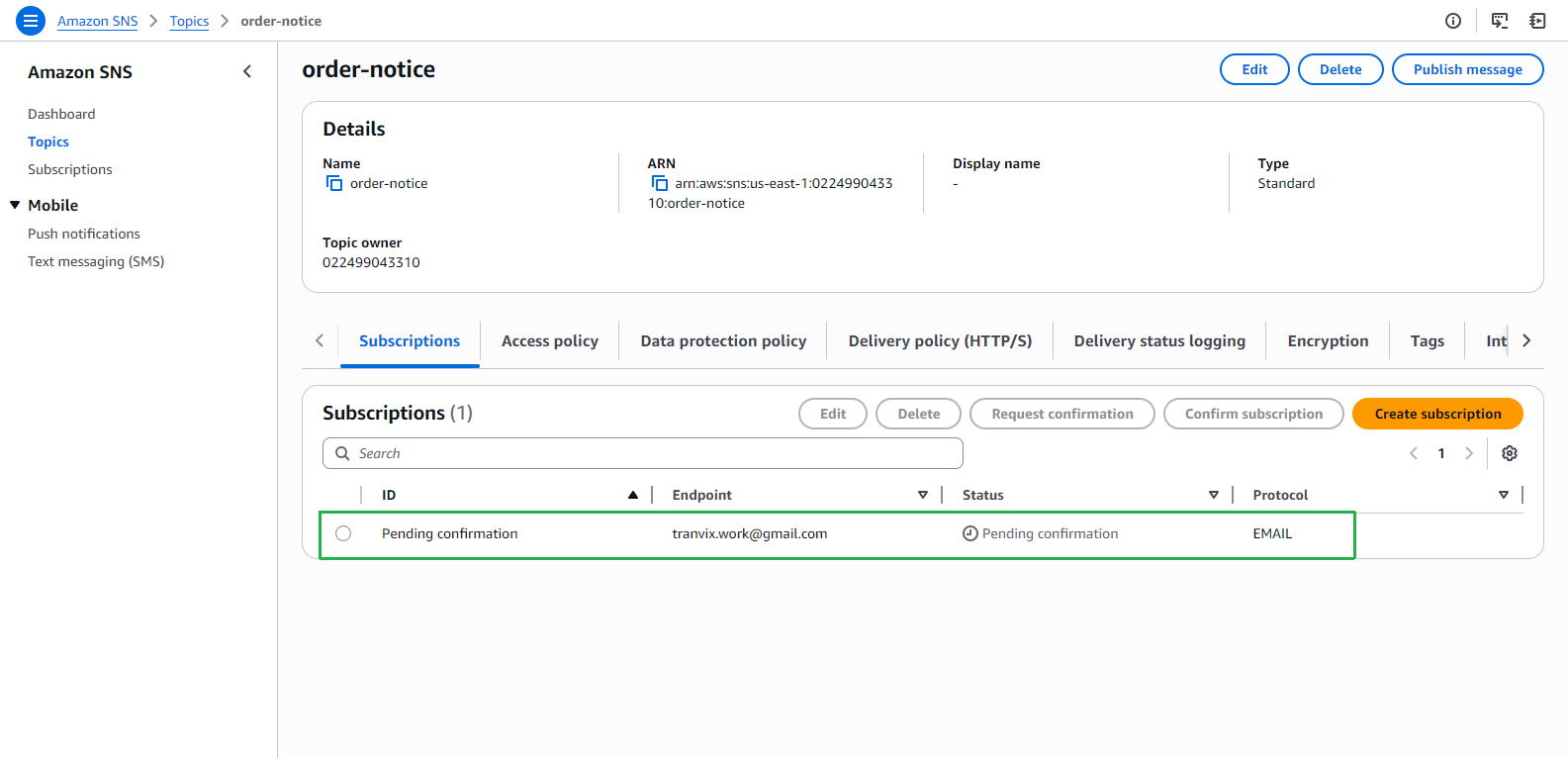
The subscription has been created successfully with Pending confirmation status.
Back to order-notice page.
- Click Subscriptions tab.
- Check the subscription that is just created with Pending confirmation status.
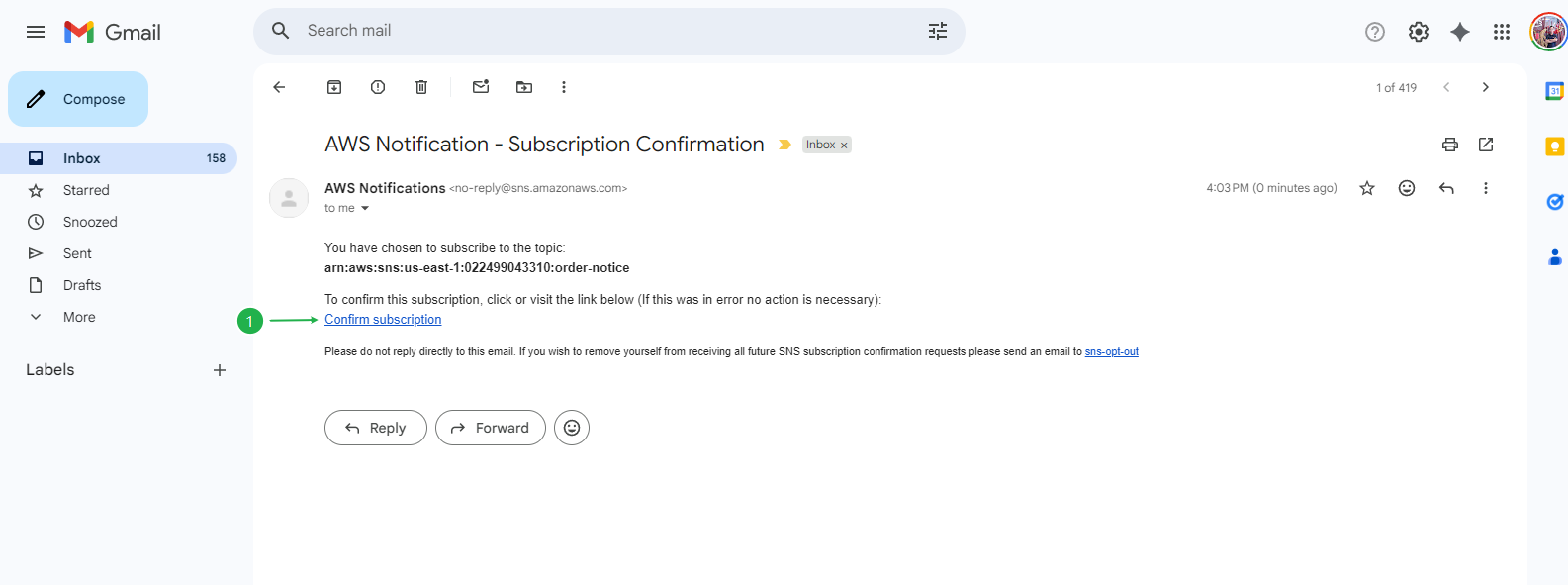
Open your email box, search mail sent from no-reply@sns.amazonaws.com.
- Click on Confirm subscription link.
- It will direct you to a new tab.
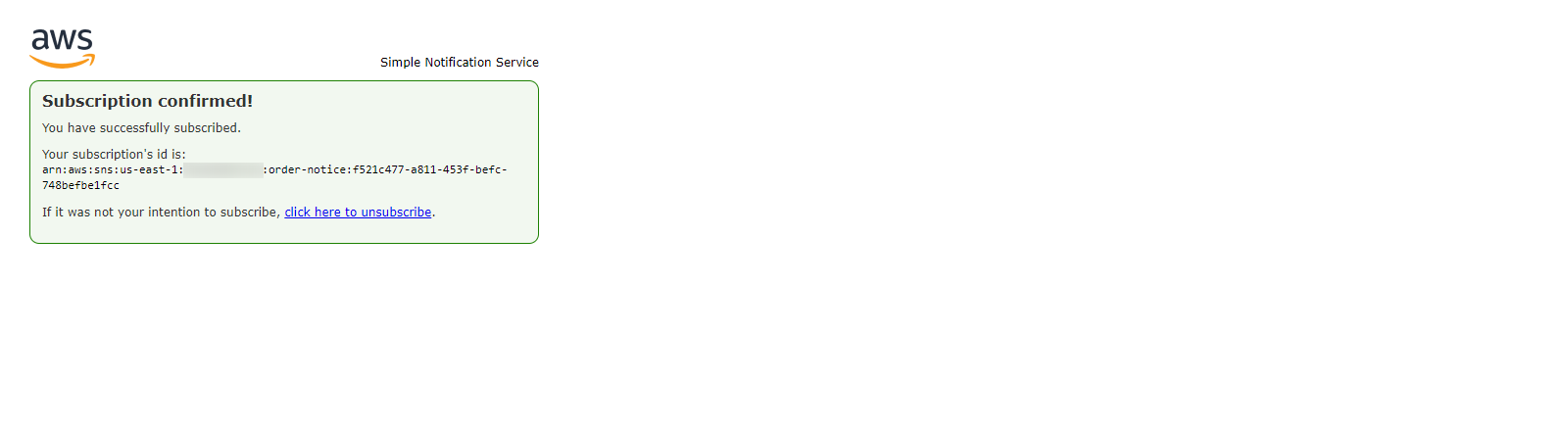
- Click on Confirm subscription link.
Back to order-notice page, check the status Confirmed of the subscription that you just created.