Test web operation
In this step, we will test Web operation.
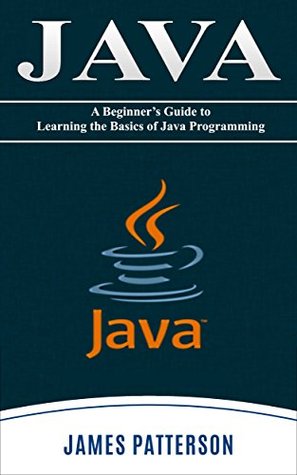
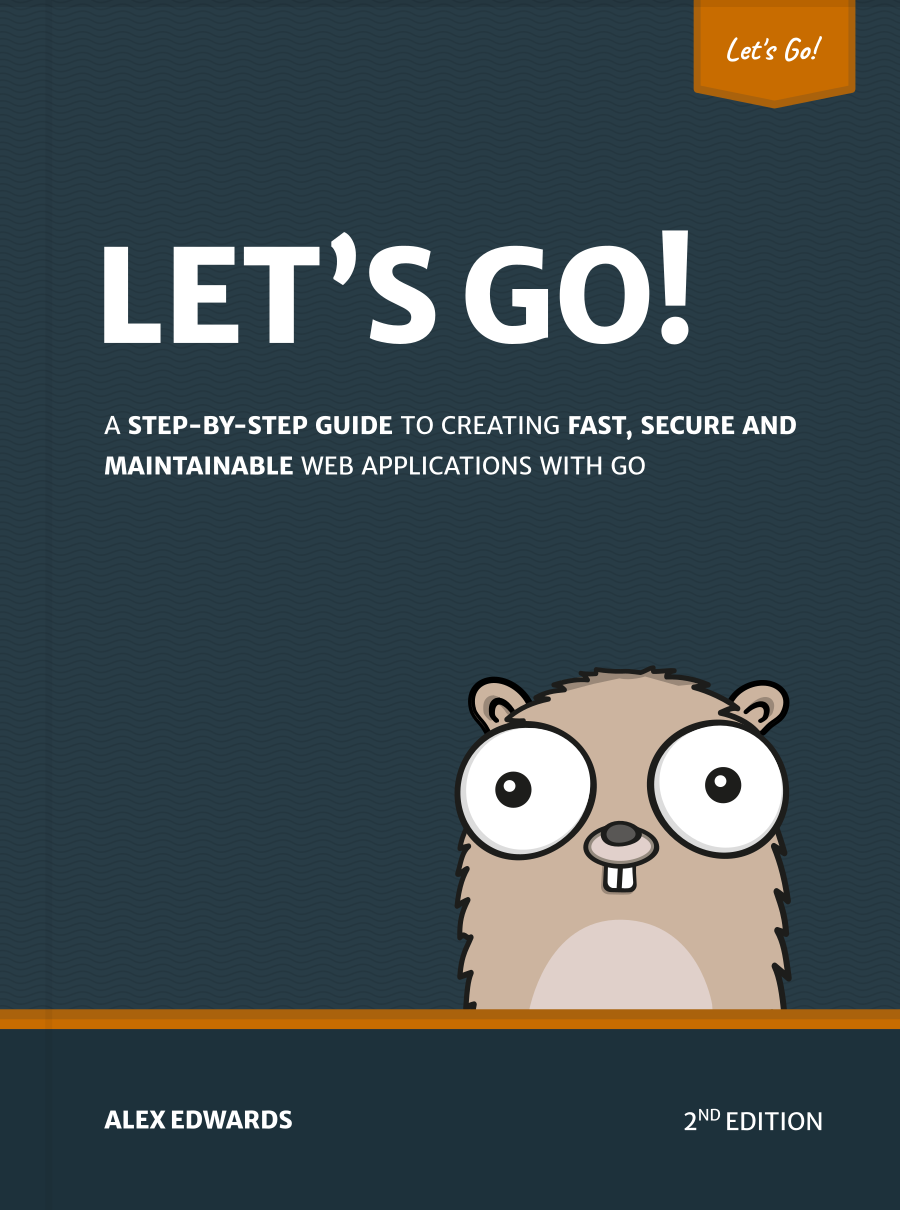
You can download the image files here to add data to check the operation of the services.
Enter the following links in a new tab in your web browser:
http://www.DOMAIN, replace all DOMAIN with your domain name. All those links redirect to the new path, replace http with https.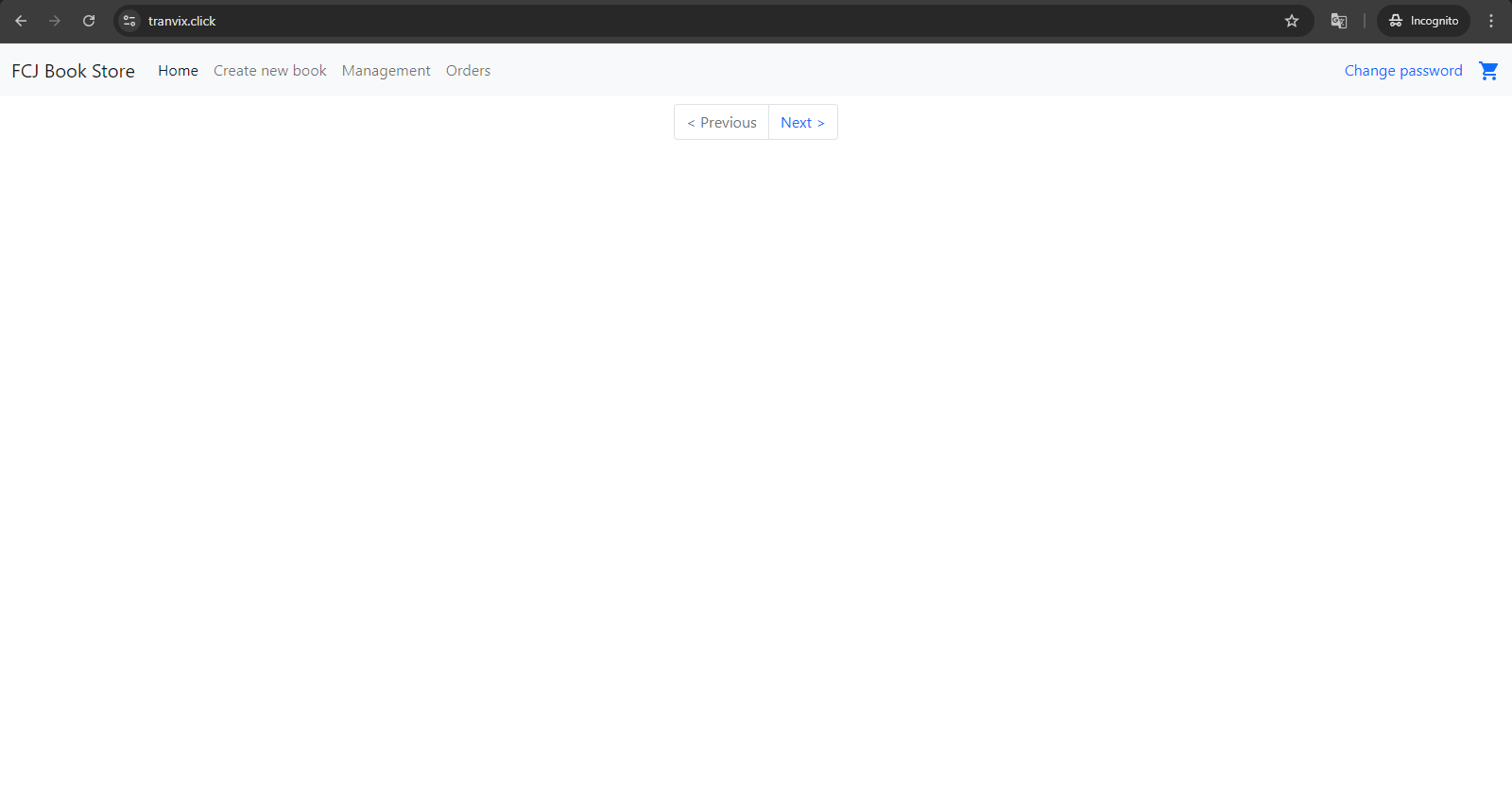
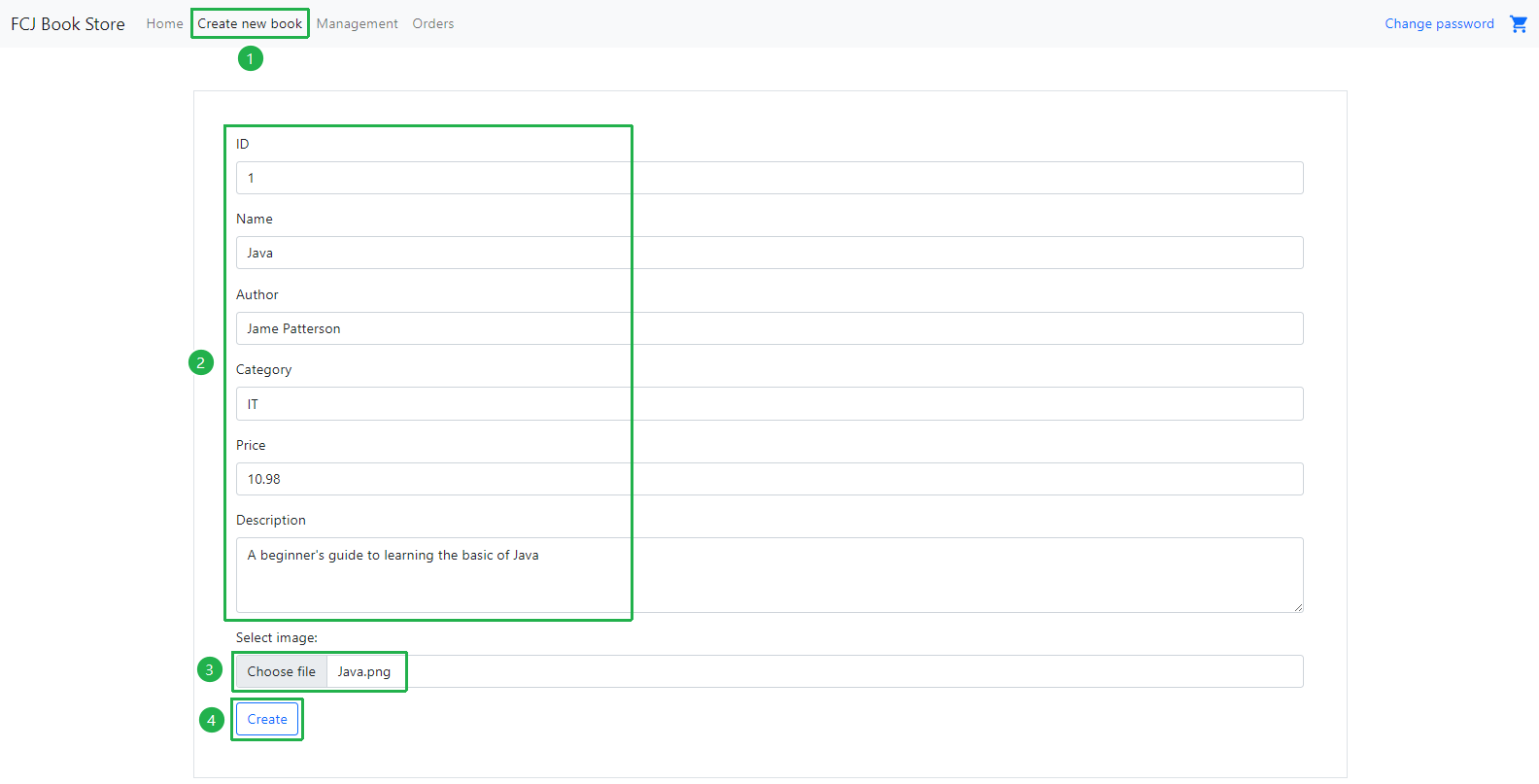
Click Create new book.
- Enter ID:
1. - Enter book name:
Java. - Enter author:
Jame Patterson. - Enter category:
IT. - Enter price:
10.98. - Enter description:
A beginner's guide to learning the basic of Java. - Click Choose File button and choose Java.png image that you just downloaded.
- Click Create button.
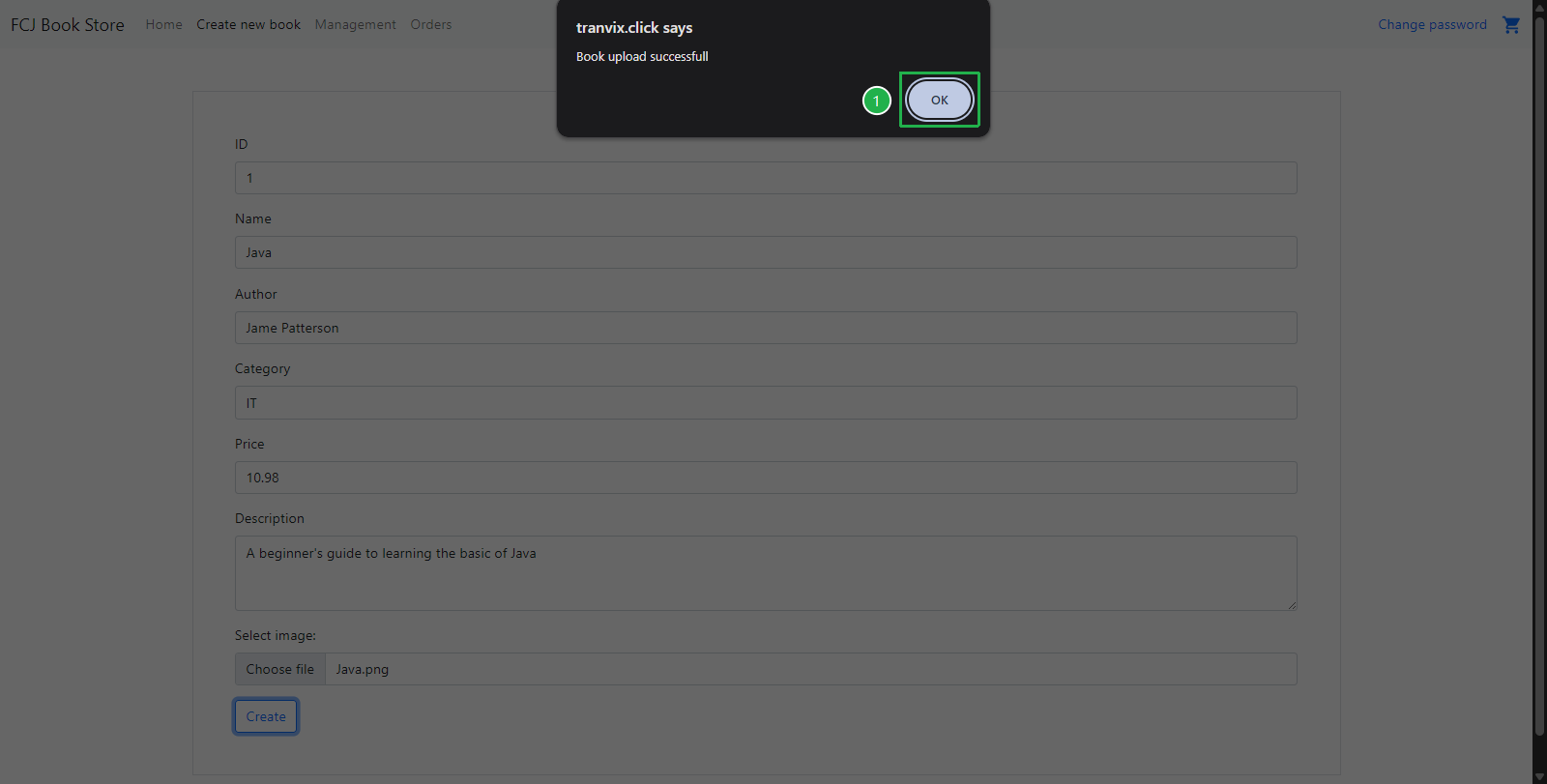
- Click OK button when popup opens.
- Enter ID:
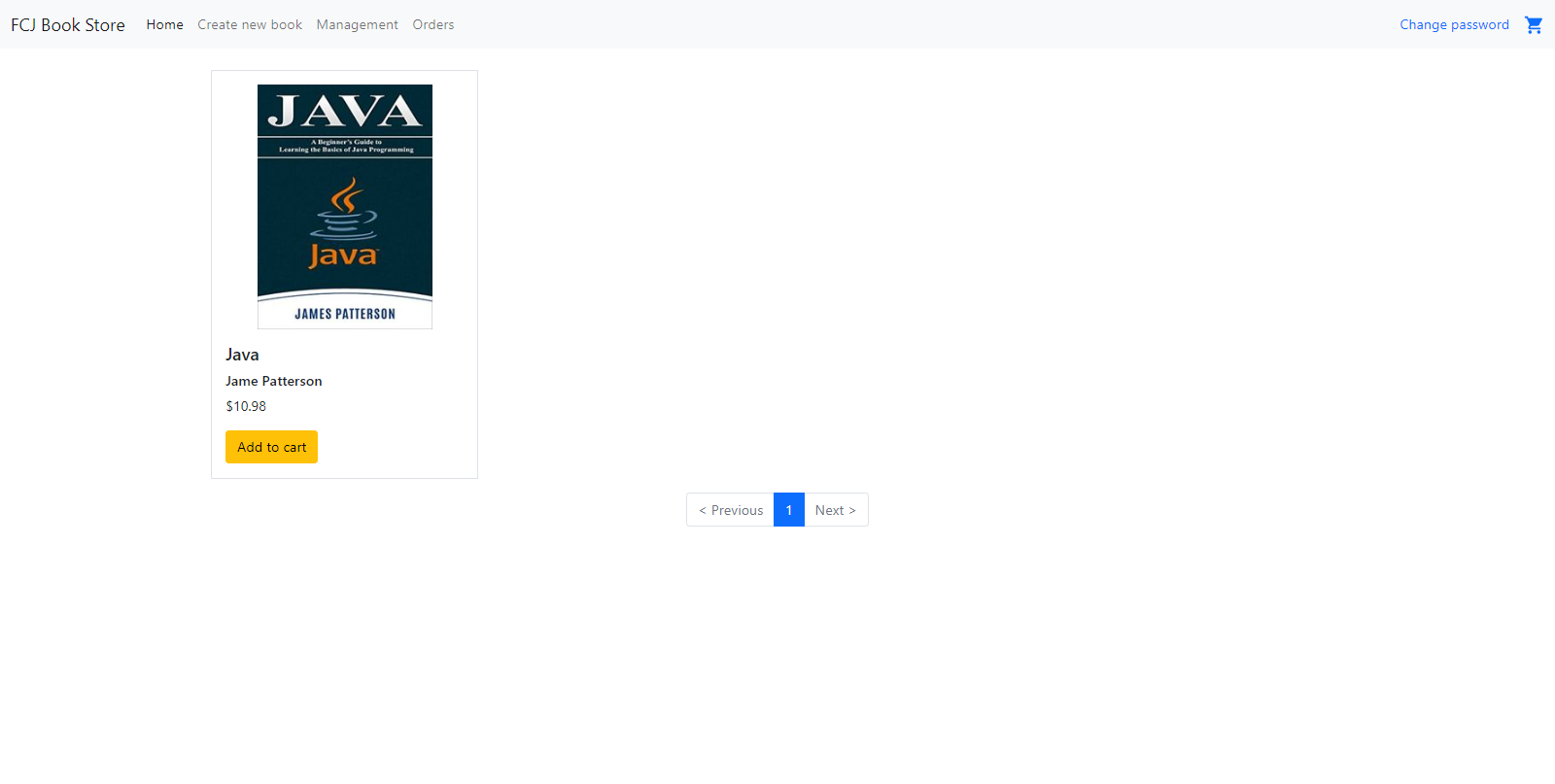
Back to Homepage, the Java book is now displayed.
Create the new book as the previous step.
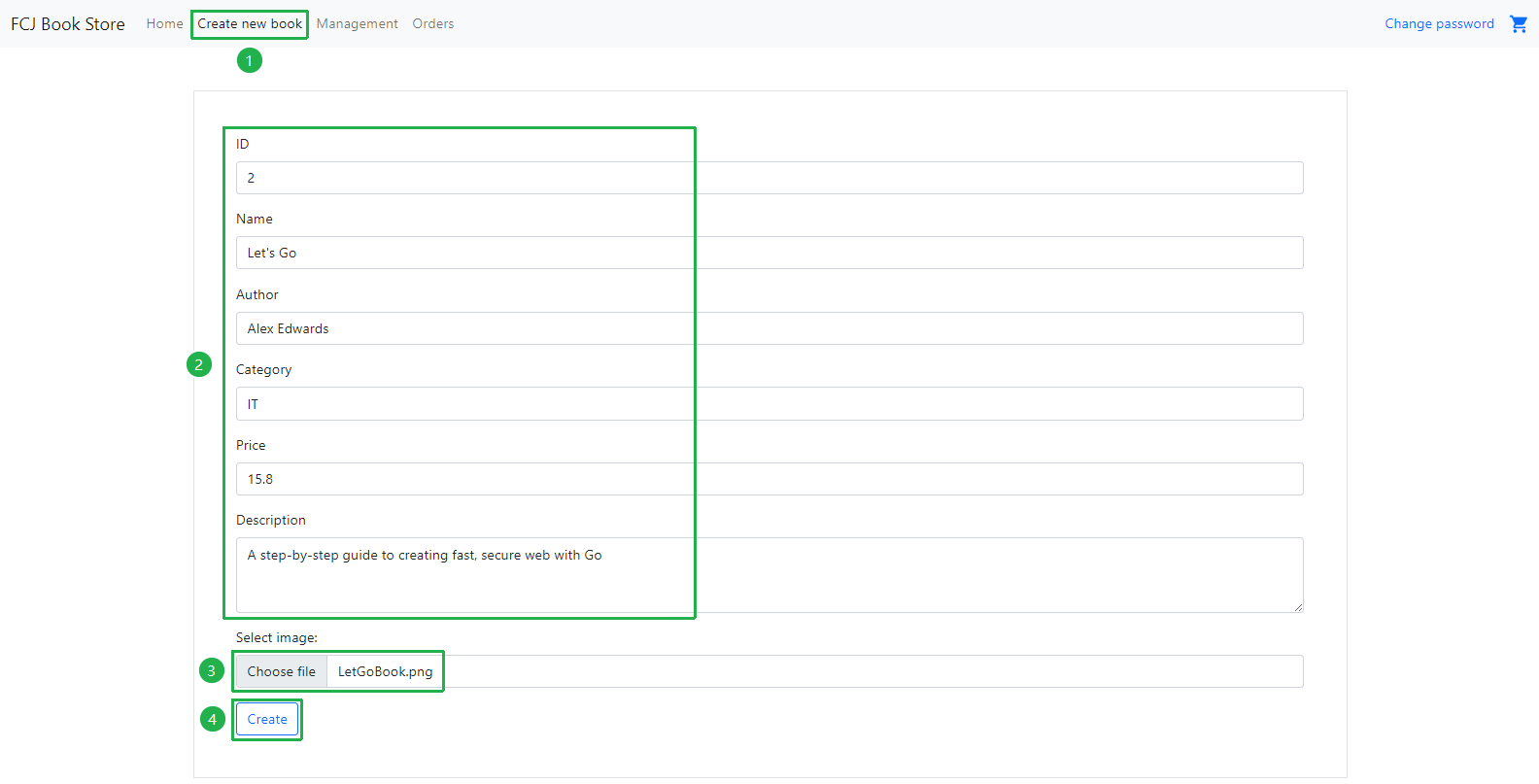
- Click Create new book.
- Enter ID:
2. - Enter book name:
Let's Go. - Enter author:
Alex Edwards. - Enter category:
IT. - Enter price:
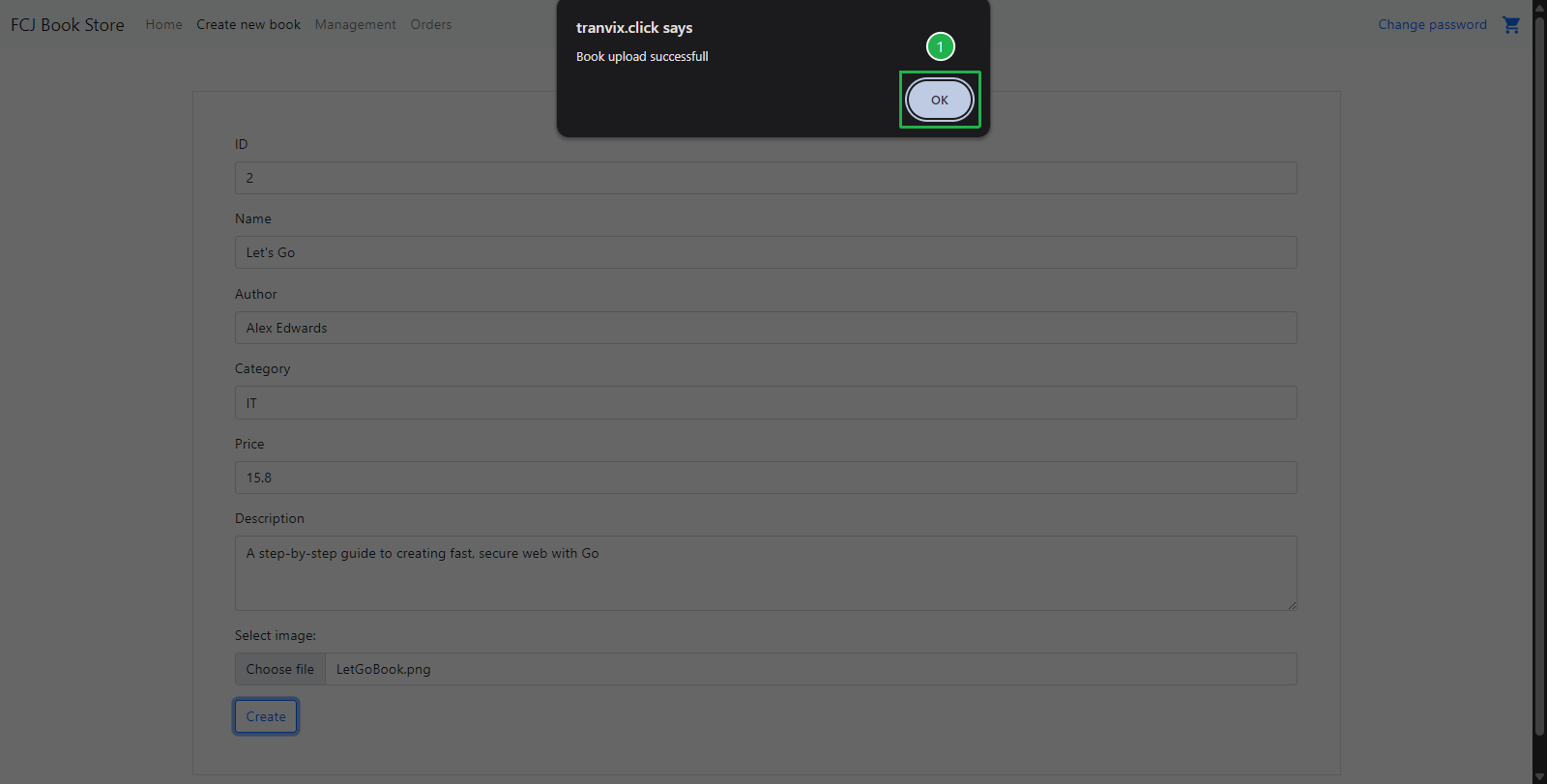
15.8. - Enter description:
A step-by-step guide to creating fast, secure web with Go. - Click Choose File button and choose LetGoBook.png image that you just downloaded.
- Click Create button.
- Click OK button when popup opens.
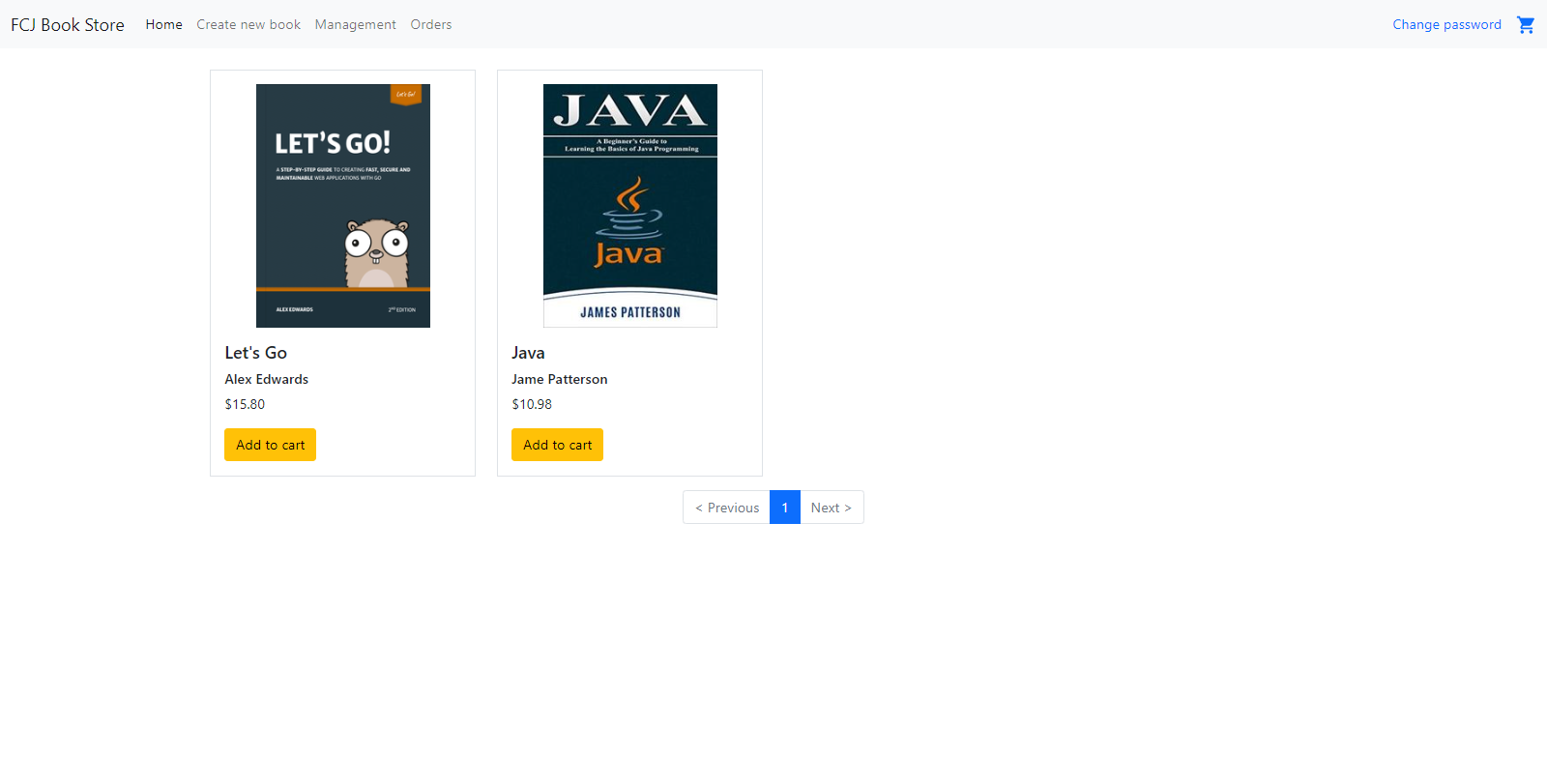
Back to Homepage, both books are now displayed.
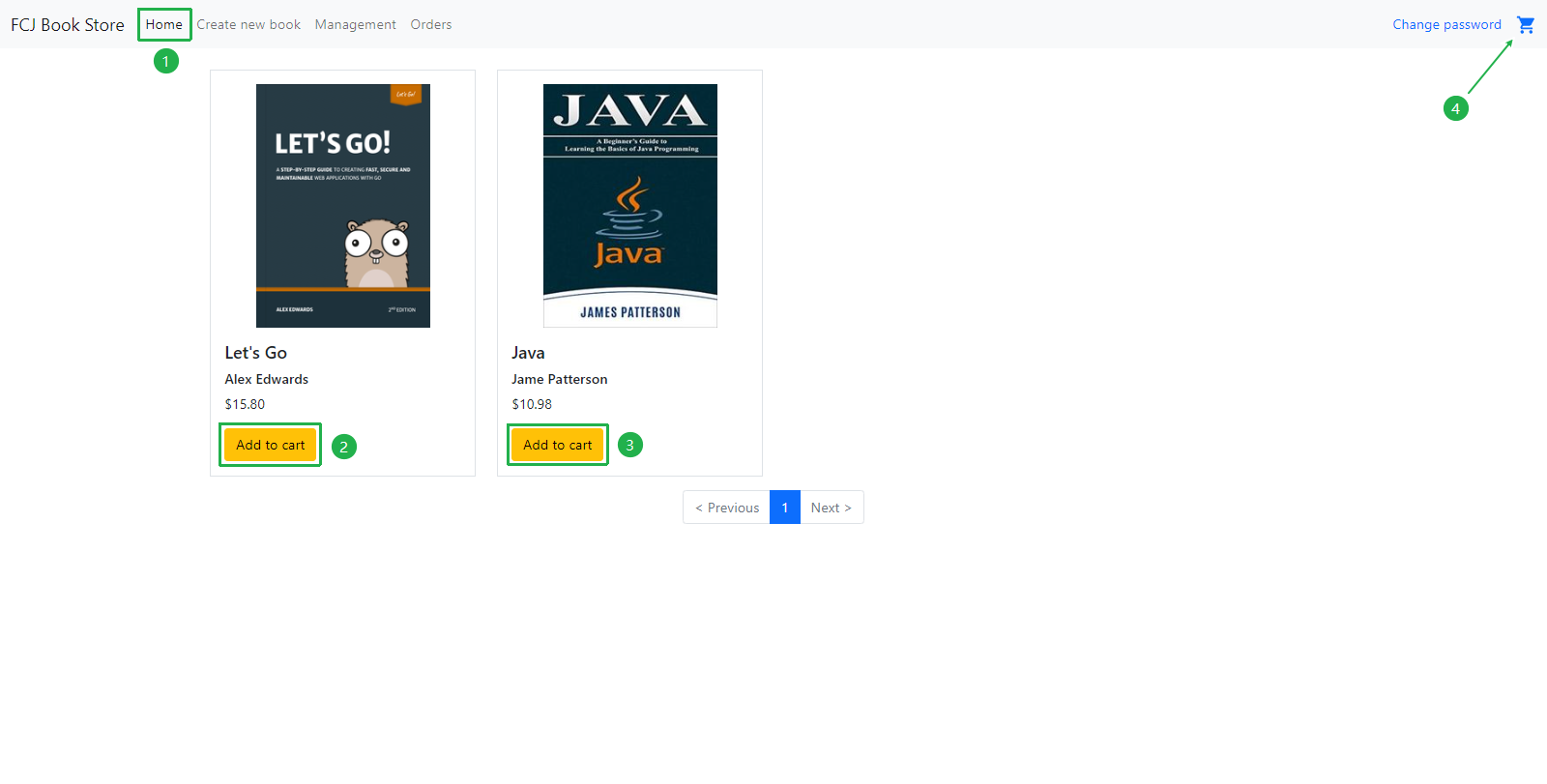
Click Add to cart button to add both 2 books to the cart. Then, click on Cart icon in the upper right corner.
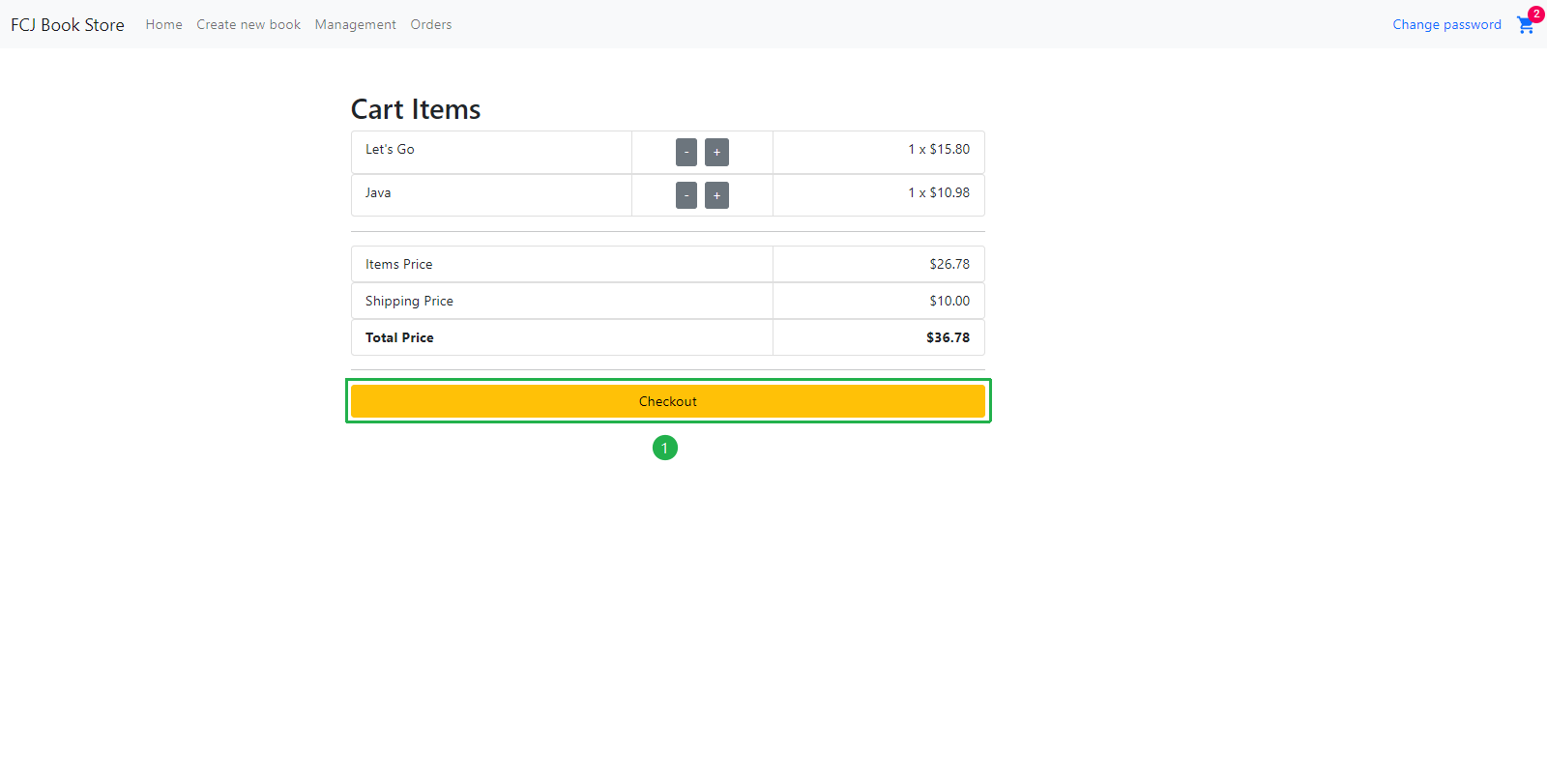
At Cart Items page.
- Click Checkout button.
- Then, click OK button.
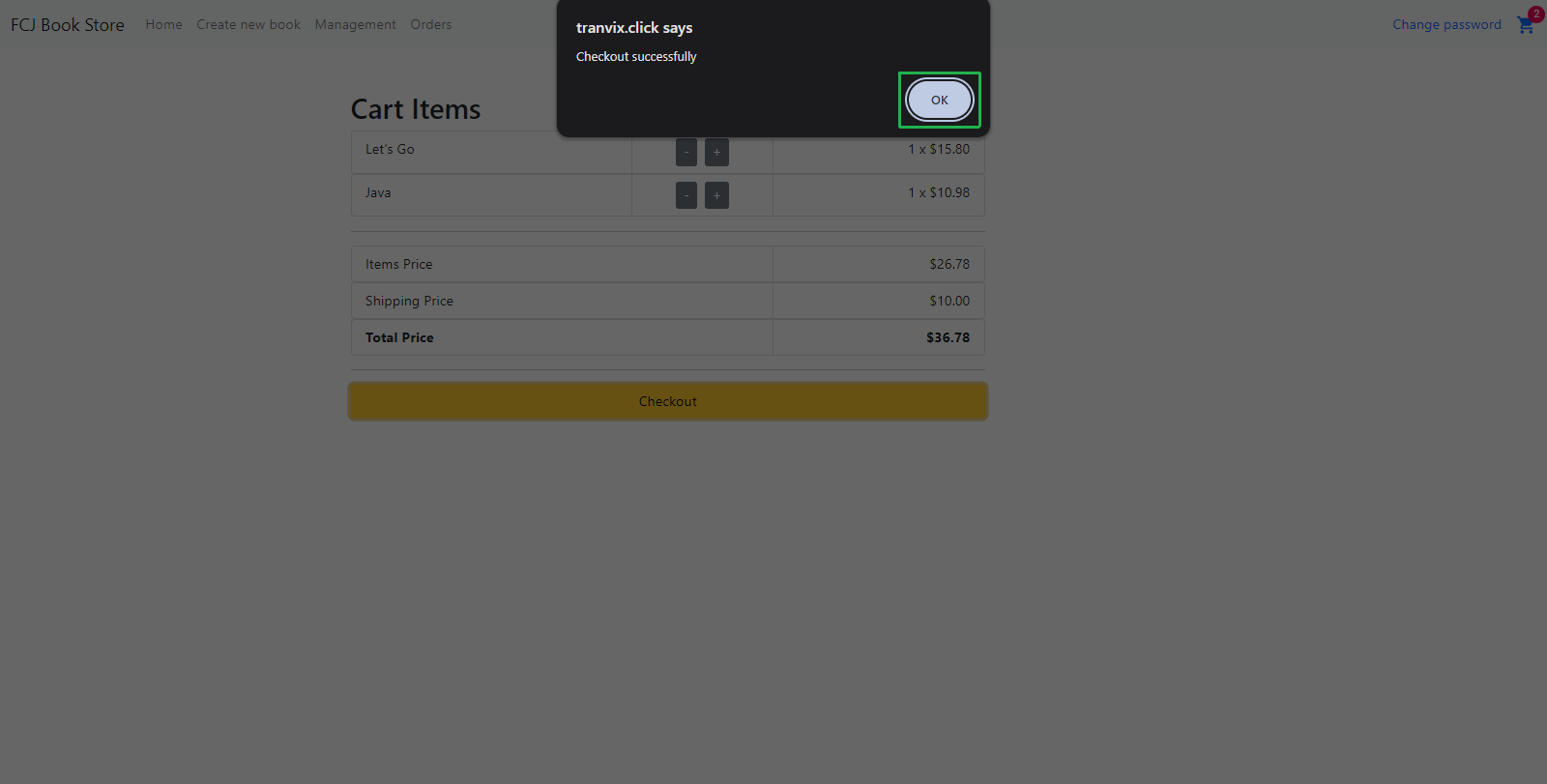
- Click Checkout button.
Open Amazon SQS console.
- Click Queues on the left menu.
- Click checkout-queue queue.
- Click Send and receive messages button.
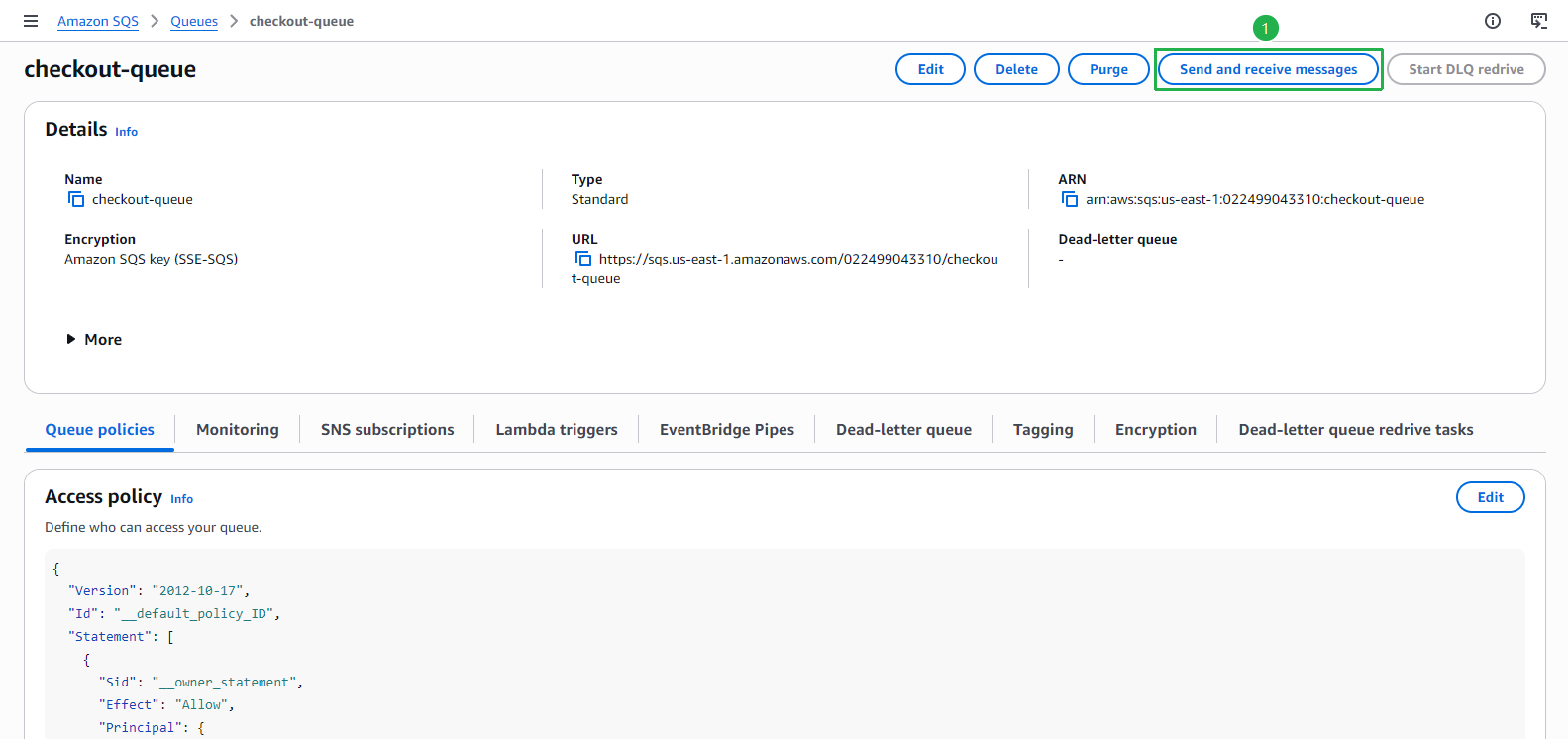
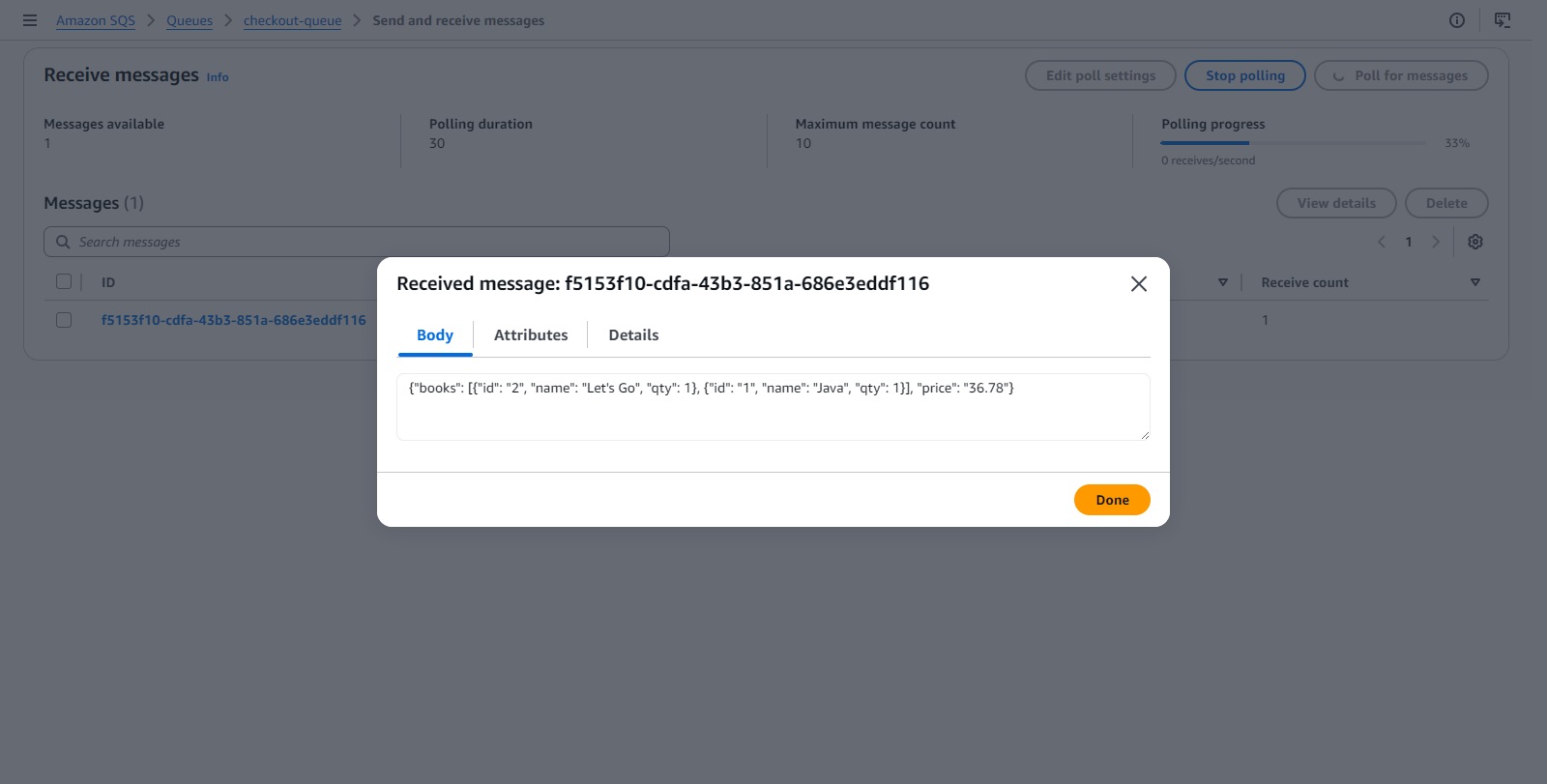
- At Send and receive messages page, click Poll for messages button.
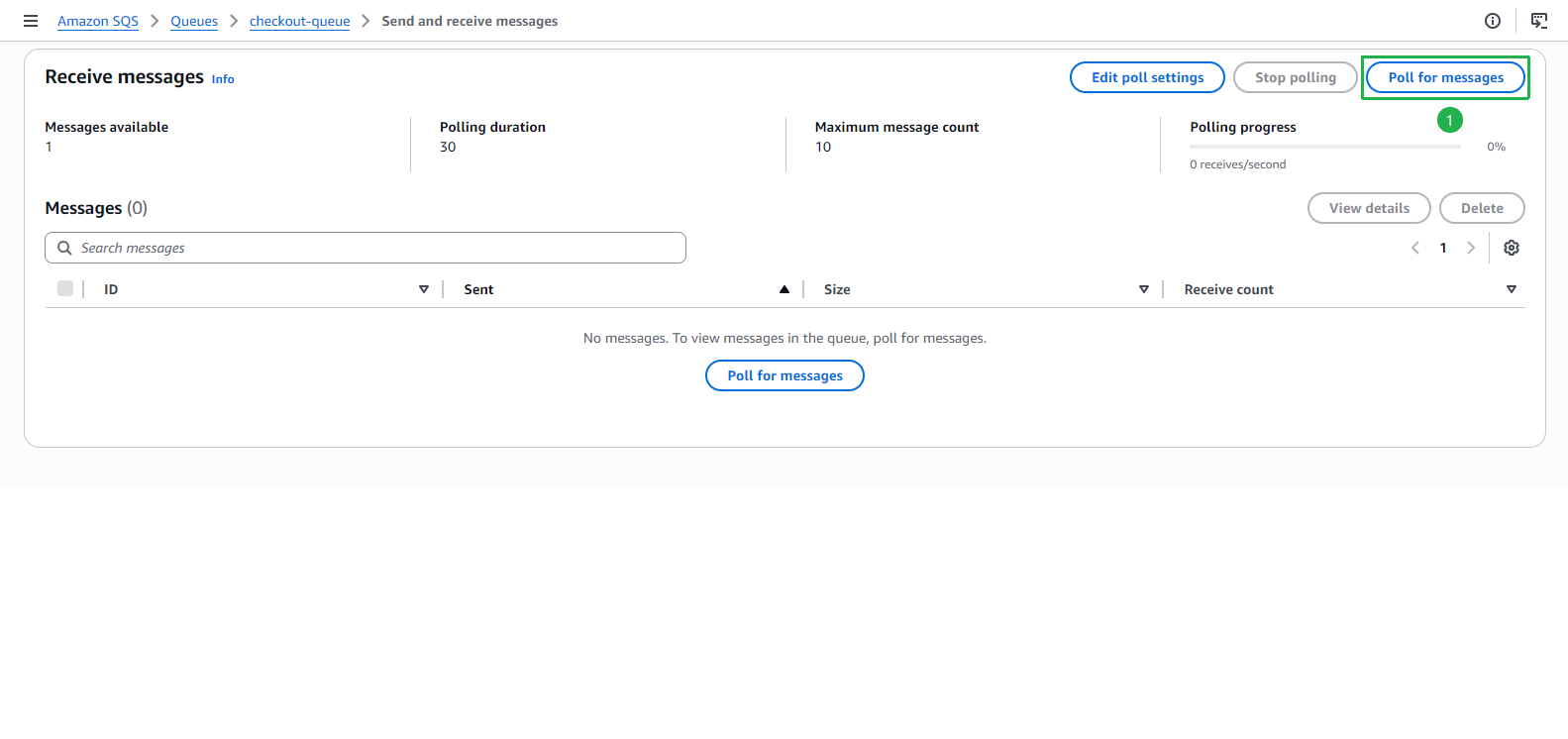
- Then, click on the showing message.
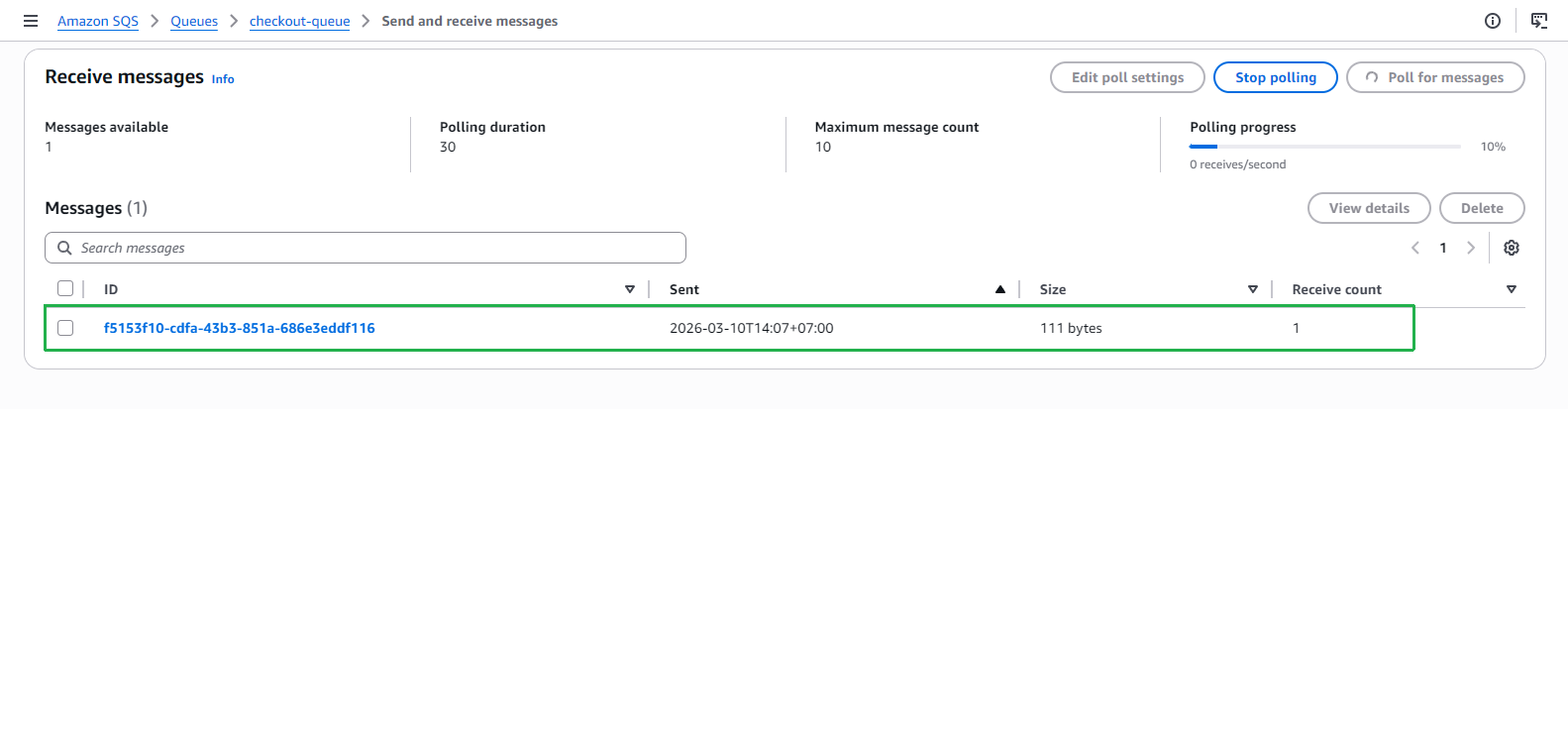
- Check the Message: … popup and click Done button.
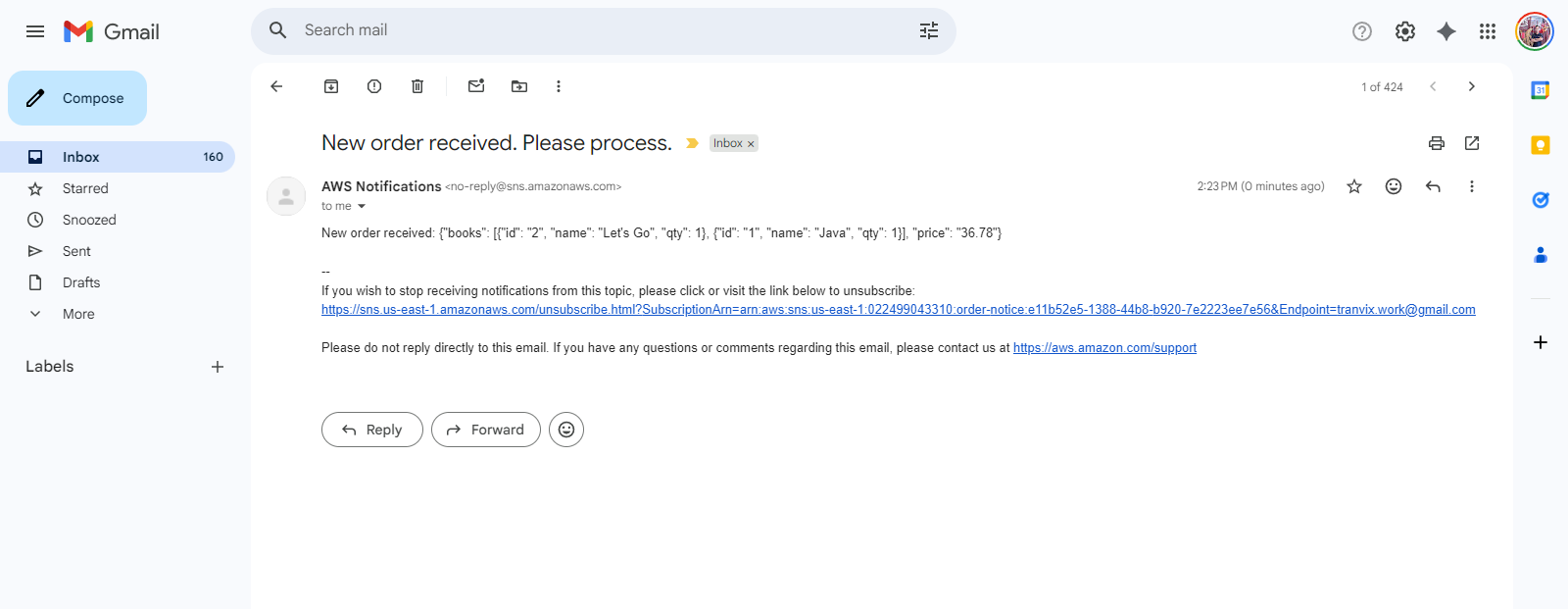
Open the email that you have subscribed to receive the notification.
Back to the application tab.
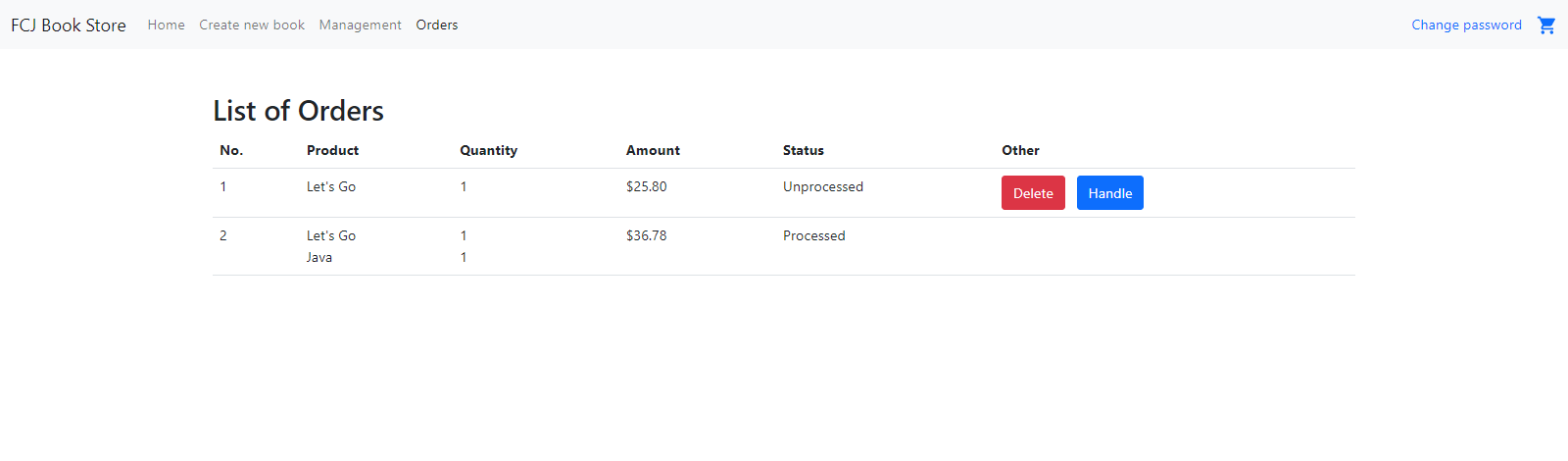
- Click Orders and check the books you added to the cart.
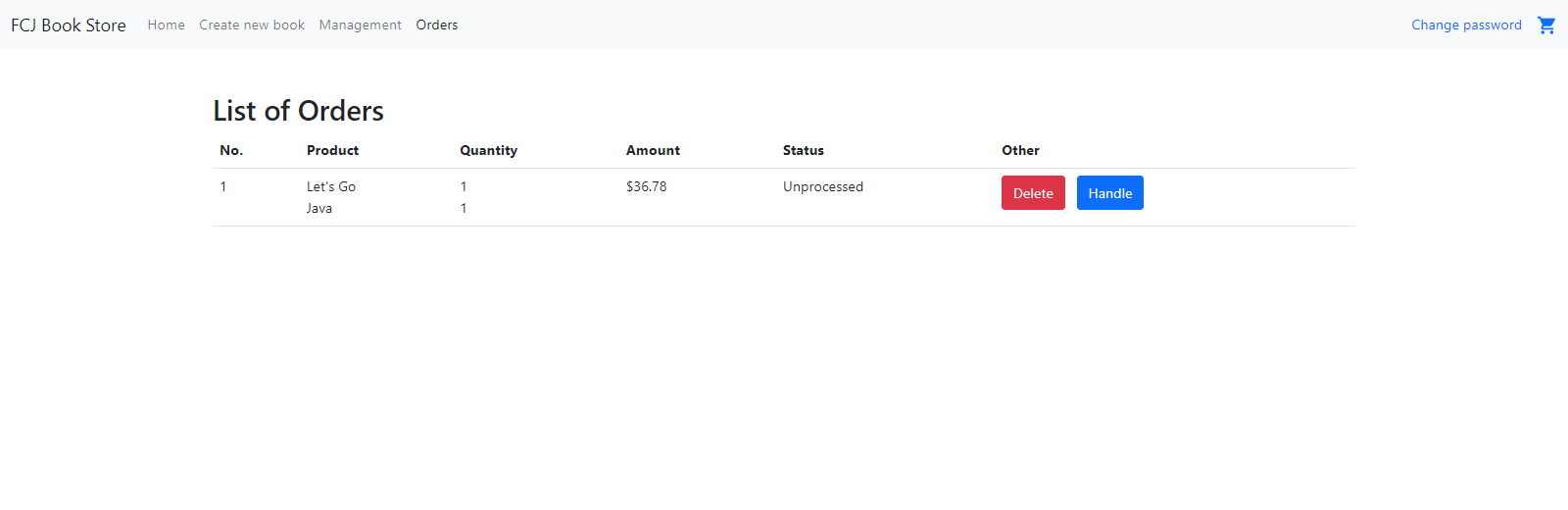
- Click Orders and check the books you added to the cart.
Next, repeat the 7th step to add some more orders as you want.
Open the application tab.
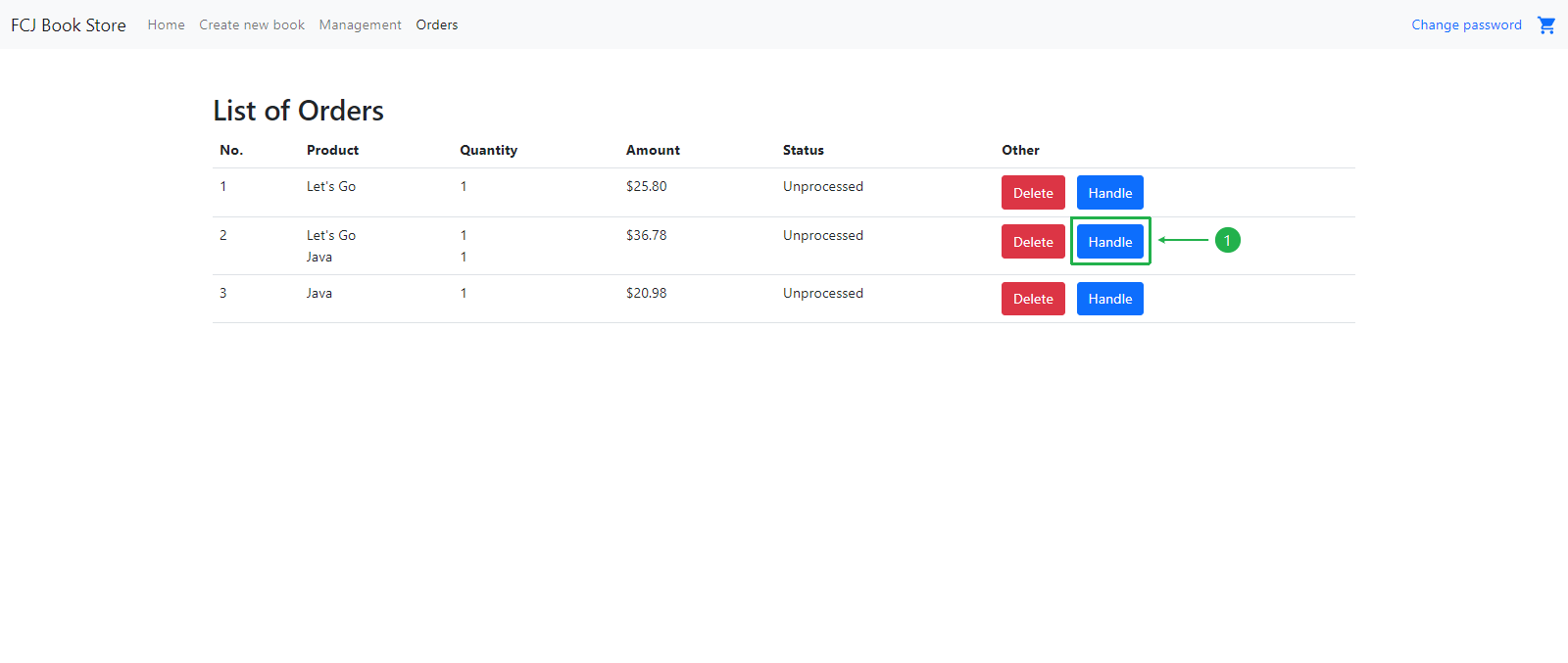
- Click Orders and check the books you added to the cart.
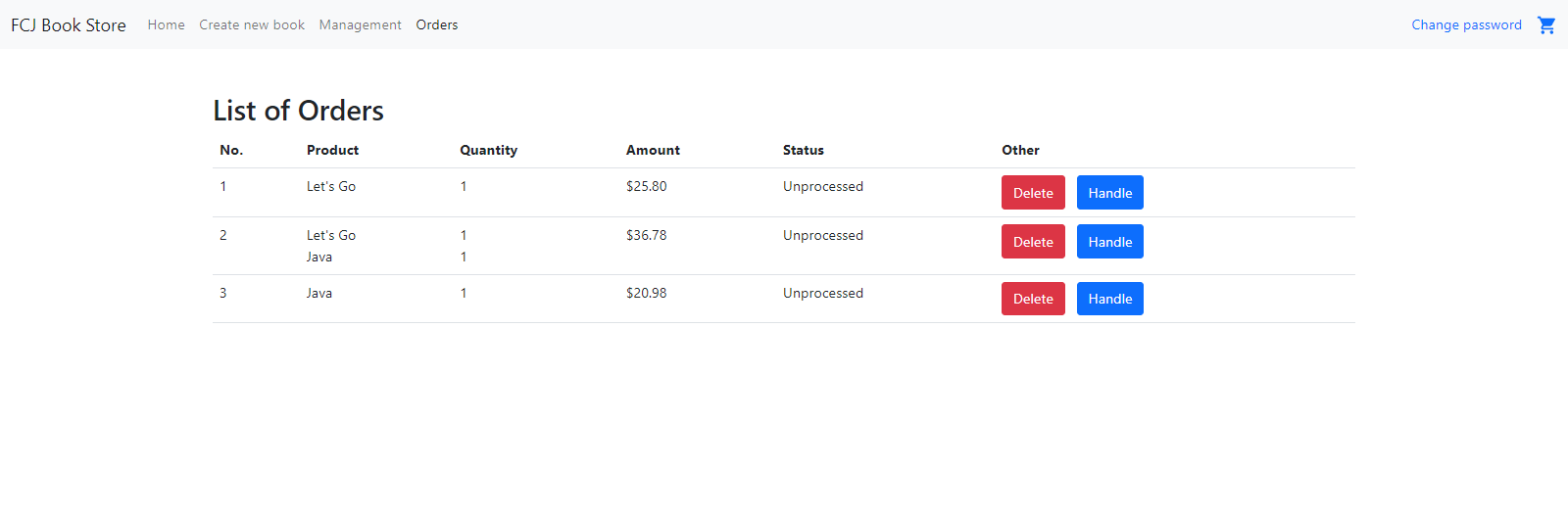
- Click Handle button on the order you want to process.
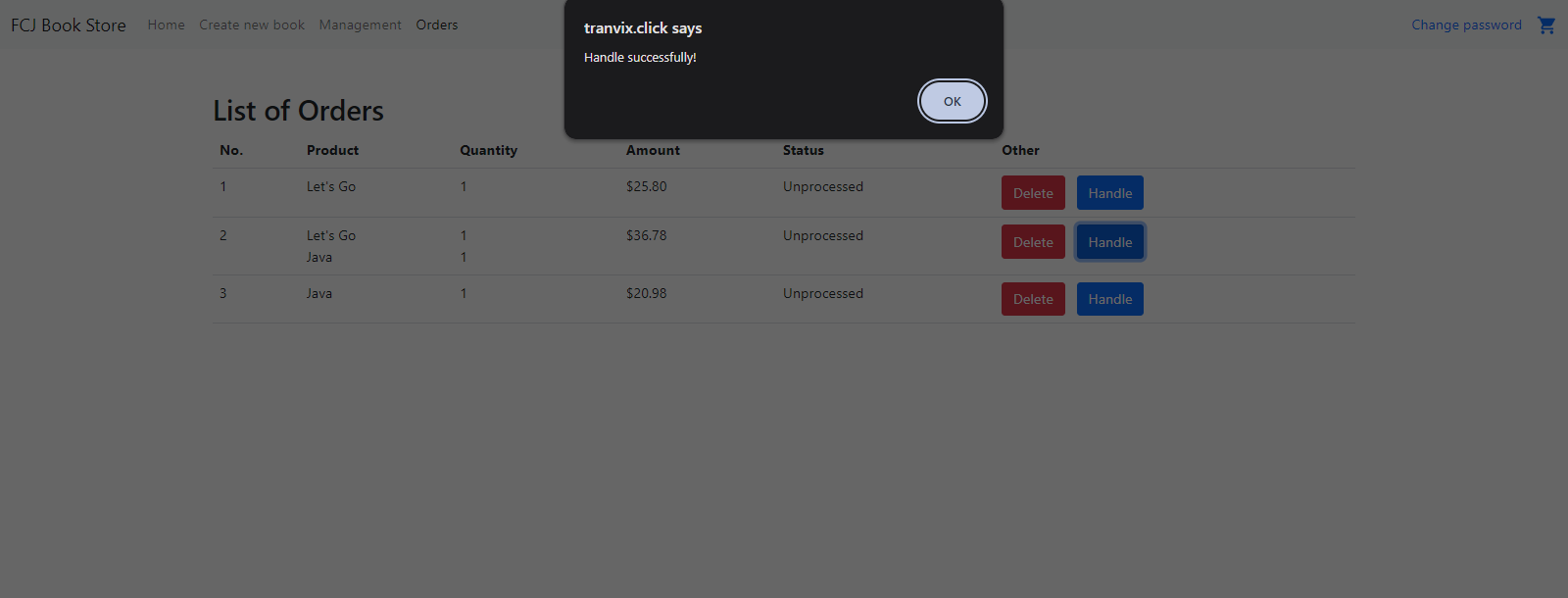
- Click OK button on the popup.
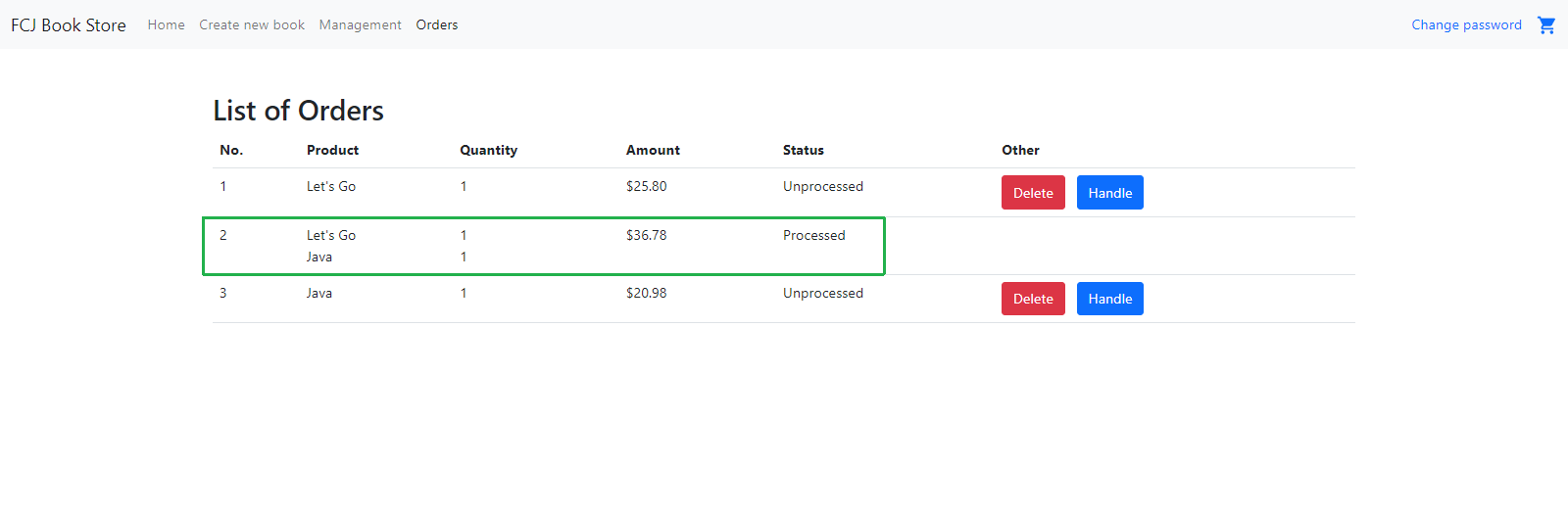
- The handled order status changes to Processed.
- Click Orders and check the books you added to the cart.
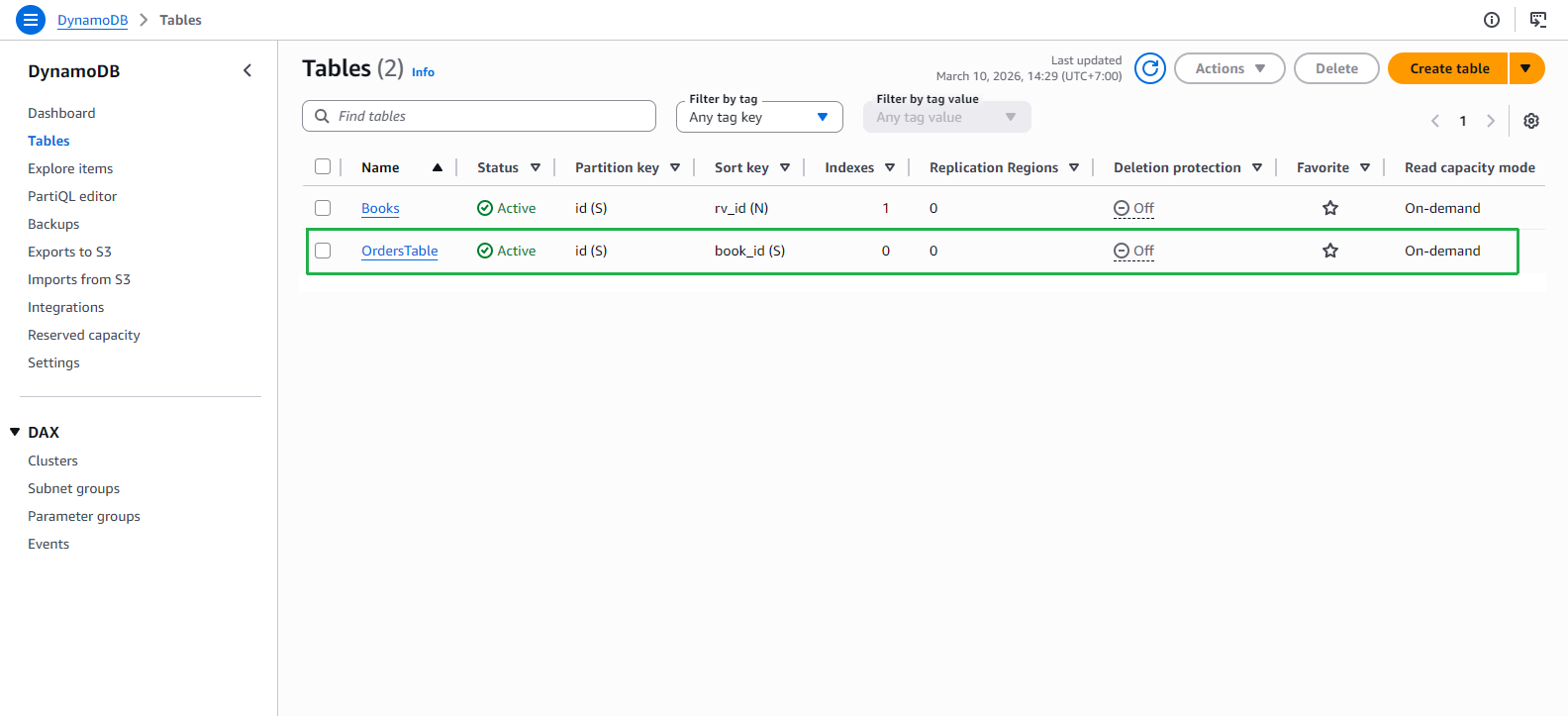
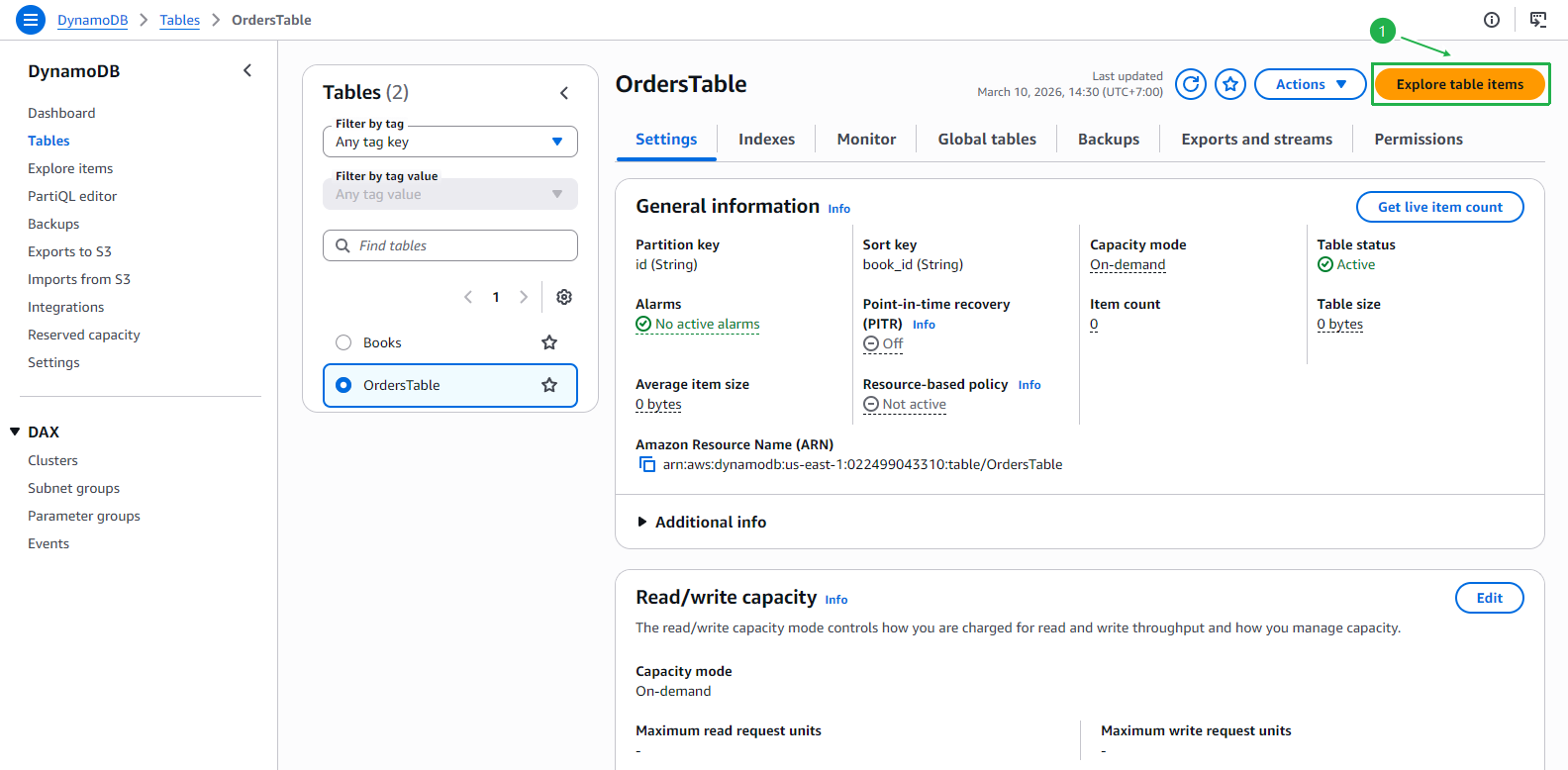
Open AWS DynamoDB.
- Click Tables on the left menu.
- Choose OrdersTable table.
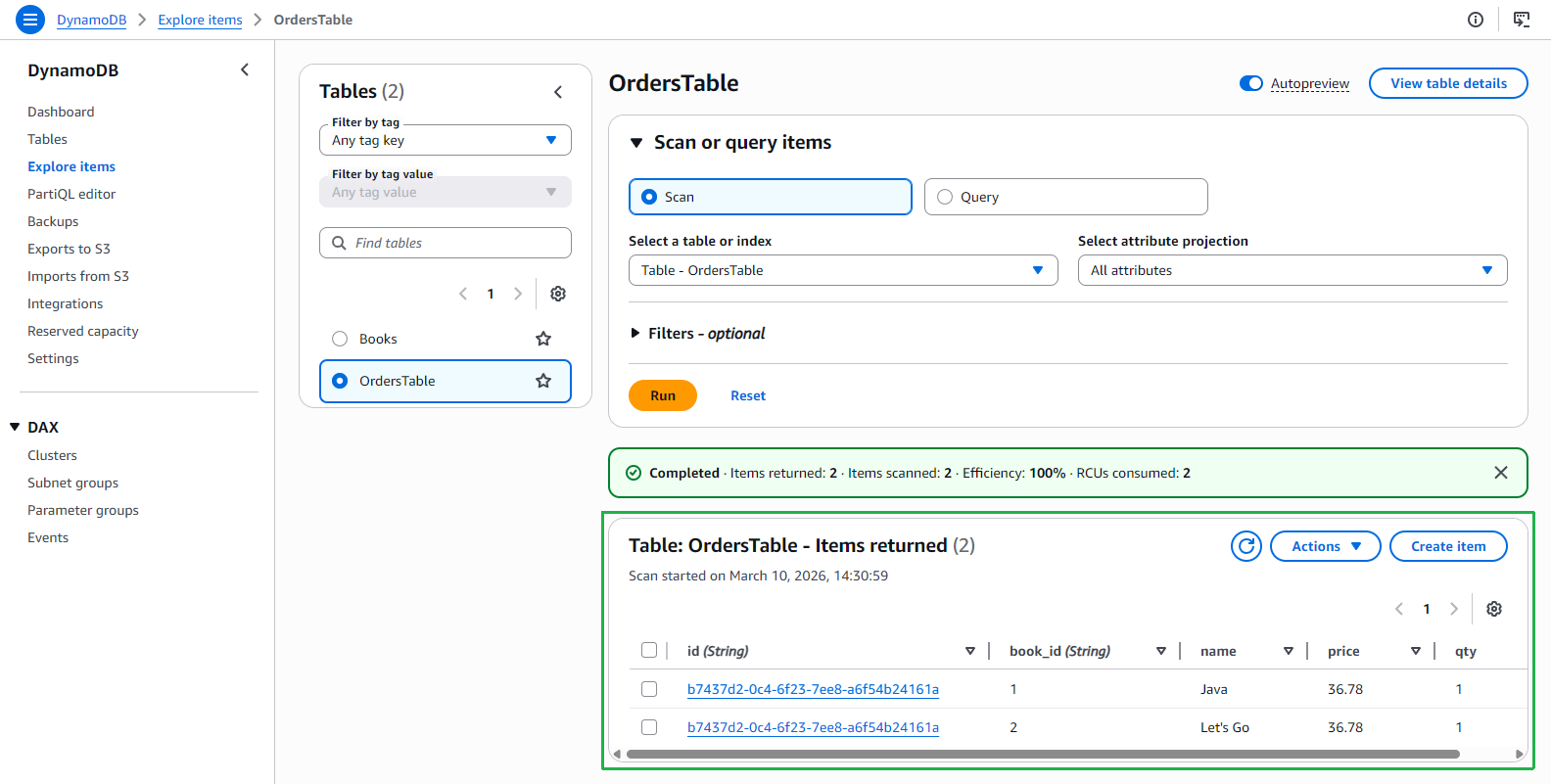
- At OrdersTable page, click Explore table items button.
- You could see the items in the order that you clicked the Handle button before.
Back to the application tab.
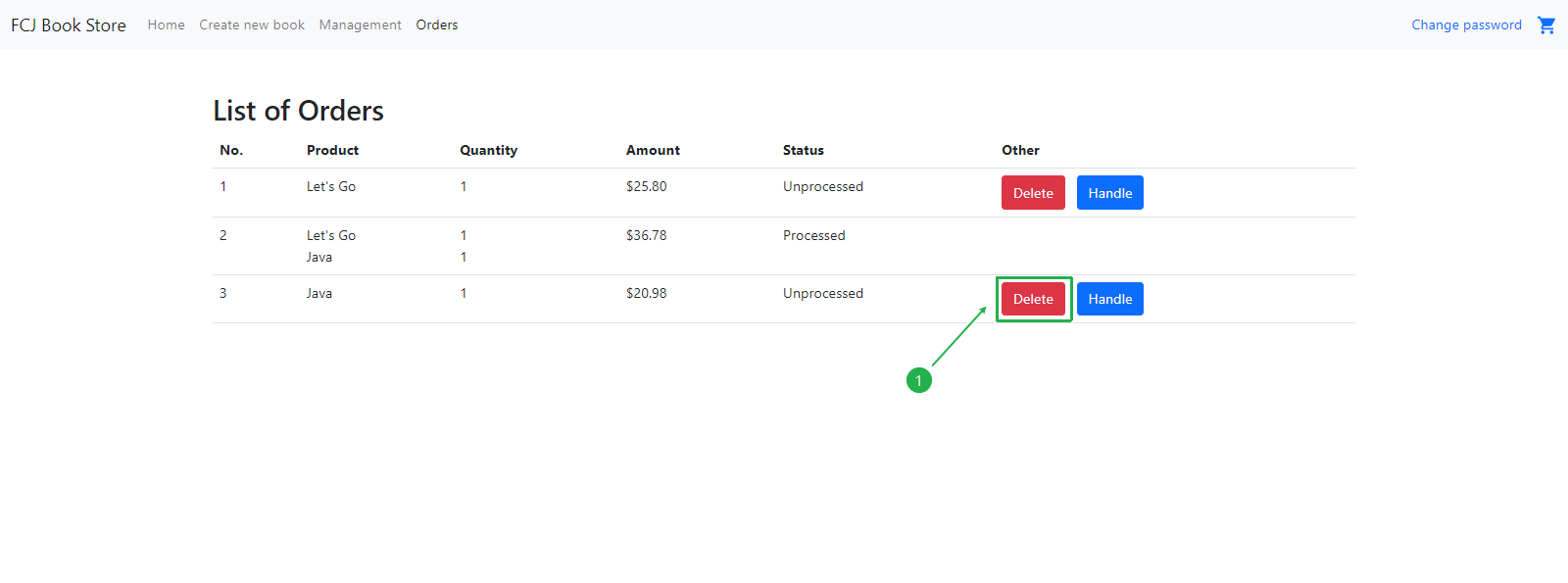
- Click Orders and check the books you added to the cart.
- Next, click Delete button on the order you want to delete.
- Click OK button on the popup.
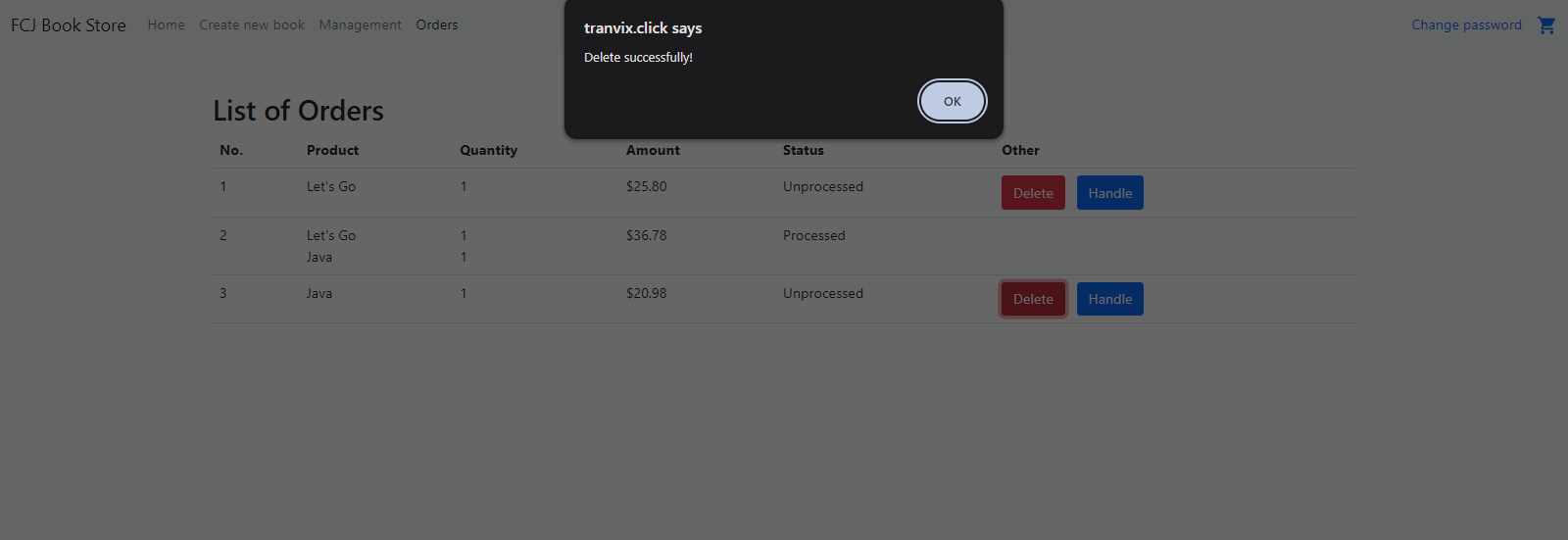
- The deleted item is no longer displayed.